Copilot Studio announcements at Microsoft Build 2025

In this post, and in the above-linked video,  I’ll give you an overview of all the new features of Copilot Studio announced during the just ended Microsoft Build 2025 conference, broken down by macro categories: multi-agent support, models, knowledge, tools, analytics, publishing, application lifecycle management.

Multi Agents

Multi-Agent Orchestration

Rather than relying on a single agent to do everything—or managing disconnected agents in silos—organizations can now build multi-agent systems in Copilot Studio, where agents delegate tasks to one another.

In the demo showed in my video, we have a banking agent that helps customers with their banking needs (for example checking account balances, transferring funds, report a stolen card and so on): previously you would have to build a single agent with all of these capabilities, now instead you can break a complex agent down into many connected agents each one specialized in a single functionality.

Adding a new agent is very easy: you can add an agent from Copilot Studio or the Microsoft 365 SDK, Microsoft Fabric, Azure AI Foundry. And in the future you’ll be able to connect to third party agents, via the A2A protocol.

Multilingual capability for Generative Orchestrator

Microsoft now provides a catalog of managed agents you can browse and install from within Copilot Studio. These agents are complete solutions, that you can use as template and customize for your needs.

Models

Copilot Tuning

A feature that was long-waited is Copilot Tuning. Copilot Tuning allows you to fine-tune large language models (LLMs) by using your own data. That’s implement in a task-specific fashion, let’s say in a controlled way, let’s see an example.

The first step is configuring your model. Click create new. Next, you’ll provide the model name, a description of the task you’d like to accomplish, and select a customization recipe tailored to the specific task type.

Next, you’ll give the model instructions to help it identify and prepare the most relevant data from your SharePoint sites.

Next, you need to provide the training data or knowledge, which forms the foundation of your fine tuned model. Currently only SharePoint sources are supported.

The final step in configuring is to define who can use the fine-tuned model to build agents in Microsoft 365 copilot by using security groups.

Now that your model is configured, you’re ready to prepare your training data with data labeling. Data labeling is the process of identifying the best examples that you want the model to learn from.

Once your data are processed, you’ll receive an email notification indicating that your data is ready for labelling.

The model you have fine-tuned can be used in M365 Copilot Agent Builder. So from the new M365 Copilot interface you select Create Agent, and you’ll be prompted to select the purpose of your agent: general purpose or task-specific. Select task specific to see the list of fine-tuned models that are available to you. You select a model, then from now on you proceed to building and customize your agent as usual.

Bring Your Own Model as a primary response model

We are now offered the possibility to fine-tune the LLM model used by Copilot Studio while building our agents, in two different ways: at agent level and at tool level. Let’s start with the agent level.

Once you have your agent initialized, go to the settings, in the generative AI tab, you have now a drop down to change the primary response model: you have some preset options plus the possibility to connect to AI Foundry and select your own published models from AI Foundry.

Bring Your Own Model as a primary response model

The second way how you can introduce a fine-tuned model in our Copilot Studio agents is via the prompt tool.

The prompt tool allows you to specify a task to be completed by Copilot Studio, describing it in natural language, and copilot studio will call it when it reckons necessary.

Now you have the possibility to specify a model for your prompt. You have some of the managed models already available for you, the ones that are curated by Microsoft. In addition it’s also possible to use one of 1900 plus Azure AI Foundry models based on your specific  use case.

Knowledge

SharePoint lists, Knowledge Instructions

Copilot Studio is making progress on the Knowledge management as well. Now it supports SharePoint Lists, as well as uploading files grouping them together as a single knowledge base. Plus, now you have the option to write Instructions at knowledge level.

Tools

Computer Use

I think Computer Use is by far the most impressive tool added to Copilot Studio. Unfortunately it’s going to be available only for big customers in USA, at least for now.

Computer Use allows Copilot Studio Agents to interact with desktop apps and websites like a person would—clicking buttons, navigating menus, typing in fields, and adapting automatically as the interface changes. This opens the door to automating complex, user interface (UI)-based tasks like data entry, invoice processing, with built-in reasoning and full visibility into every step.

Dataverse Functions

You have also Dataverse Functions in preview, you can create one from the Power Apps portal, the function can have inputs and outputs and a formula containing your business logic: and then you can add that function to your agent selecting the Dataverse connector and choosing Unbounded Action.

You can configure it with the appropriate inputs and outputs, and then that becomes one more tool at your agent disposal.

Intelligent Approvals in Agent Flows

Agent Flows is a new tool we have been seeing for few weeks now, Microsoft is actively working on it and at the Build Conference they presented Intelligent Approvals.

Intelligent Approvals inserts an AI-powered decision-making stage directly within the Advanced Approval action. You simply provide natural language business rules and select your desired AI model: the model then evaluates submitted materials—images, documents, databases, or knowledge articles—to deliver a transparent approve or reject decision, complete with a detailed rationale.

Analytics

Evaluation Capabilities

The challenge in building any kind of agent is making sure it responds accurately when users ask different types of questions.

This is where the new evaluation capabilities in Copilot Studio come in. Now you can run automated tests against your agent directly from the testing panel. You can upload your set of questions, import queries from the chat history or even generate questions using AI. You can review and edit each question before running the test. Then you can run the evaluation and get a visual summary of the evaluation results.

Publishing

Publishing to WhatsApp and SharePoint

You can now publish your agent to WhatsApp and, more importantly, you can publish it to SharePoint! That’s another long-waited feature, because so far it wasn’t possible to have a SharePoint Agent with actions and other advanced features, now finally you can.

Let me just point out here that if you create your SharePoint Agent from SharePoint, you can’t customize it in Copilot Studio yet. So this works only if you start from Copilot Studio and then publish to SharePoint, the vice versa is not possible yet.

Code Interpreter

Generate a chart via Python code

Copilot Studio agents can now generate charts, and that’s done using the new Code Interpreter feature. Python code is generated automatically in reply to a prompt, you can see it and reuse it, and then it executes and generates the chart as the user’s answer.

ALM

Source code integration

With native source control integration you can take your agents in your environment and connect it to a source control repository, such as Azure DevOps, and make commits from the UI directly, so that everything you do is source controlled and is managed in the same way that you would expect any software to be managed.

Edit agent in VS Code

And finally, for the real nerds, the extension to Visual Studio Code allows you to clone agents to your machine locally and start editing the code behind it!

You’ll get here syntax errors highlighting, auto complete, documentation and so forth.
Messing around with SharePoint Agents

A customer asked me a question about SharePoint Agents that I was unable to answer. Having then realised that perhaps SharePoint Agents are less trivial than I thought, I decided to take the question head-on, doing some tests to see if there was an answer that makes sense.

A few days ago I wrote an article on the Copilot Agents (you can find it here), and as you can see from reading it, I relegated the SharePoint Agents to the end, giving them just a standard paragraph that in truth adds nothing to what we have already known for a while.

But then it happened that during a demo the other day, a customer asked me a question about SharePoint Agents that I was unable to answer. Having then realised that perhaps SharePoint Agents are less trivial than I thought, I decided to take the question head-on that afternoon, doing some tests to see if there was an answer that makes sense.

This article is the result of those thoughts, and assumes a basic knowledge of SharePoint Agents.

The question

The customer’s question was: ‘Having one agent per SharePoint site seems excessive and unmanageable to me, how can I instead create my own “official” agent once, and make it the default agent for all SharePoint sites?’.

Let’s try to give an answer

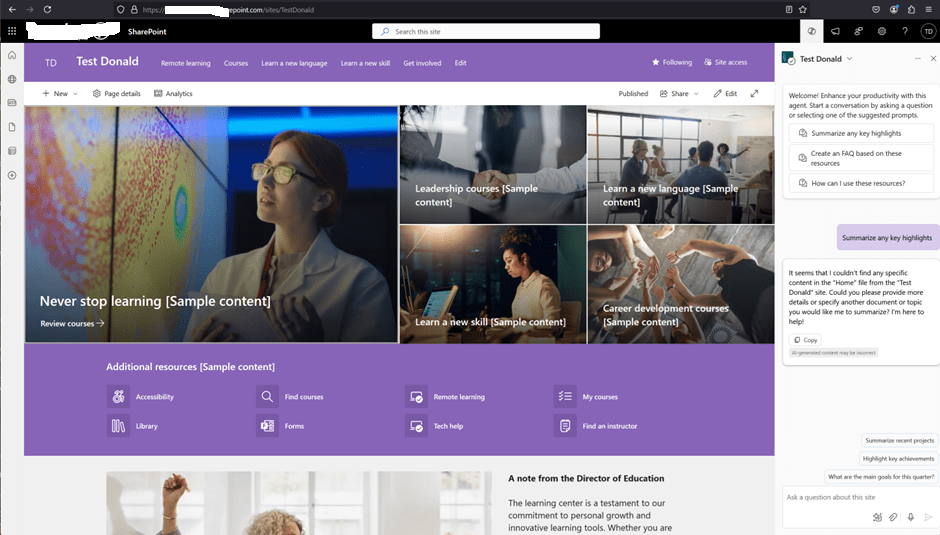
I created a test site, called “Test Donald“:

The site collection has its own default SharePoint Agent, having the same name as the site. This default agent does not have a corresponding .agent file in the site. Nor is there an option to edit the default agent. As we already know, however, I can create more agents, therefore I created a second one:

The new agent can be created directly from the menu, or by selecting a library or documents in a library:

(there must be at least 1 document in the library, otherwise the ‘Create an agent’ button won’t appear).

Please note that it is not (yet) possible to customise a SharePoint Agent in Copilot Studio:

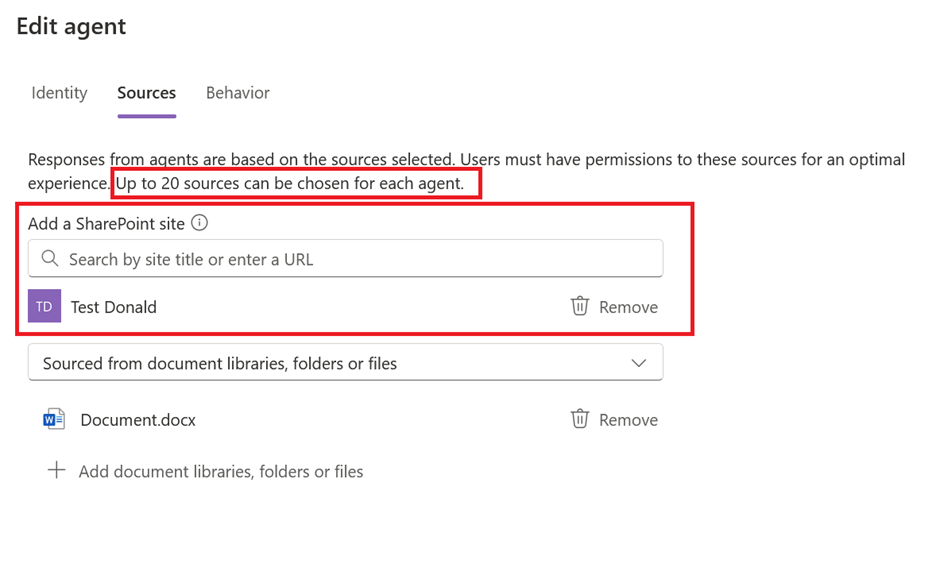
A SharePoint Agent published on one site can also be based on knowledge from other SharePoint sites, but it’s important to bear in mind that only a maximum of 20 knowledge sources can be added:

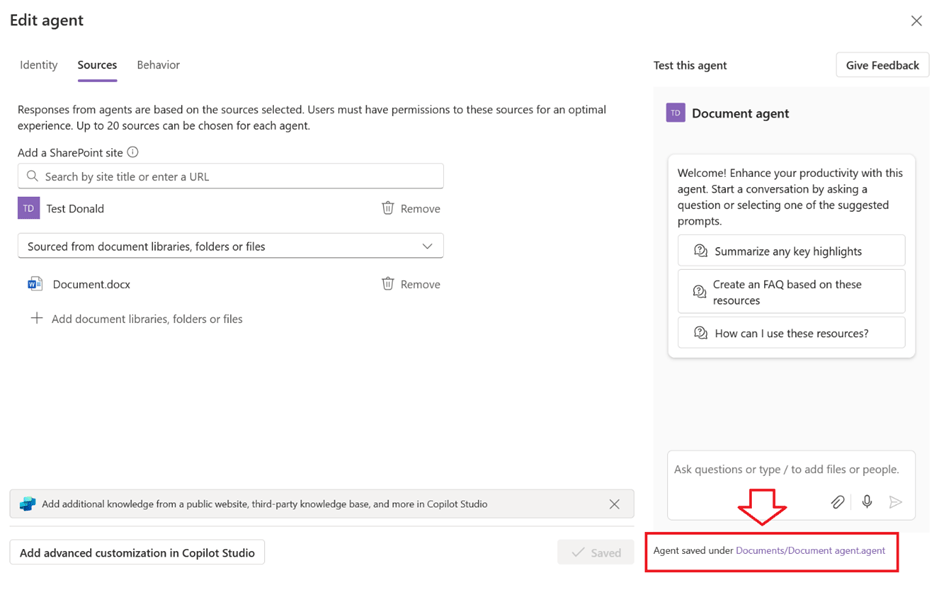
The Edit popup shows the location of the saved agent:

Navigating the link will lead to the location of the associated .agent file:

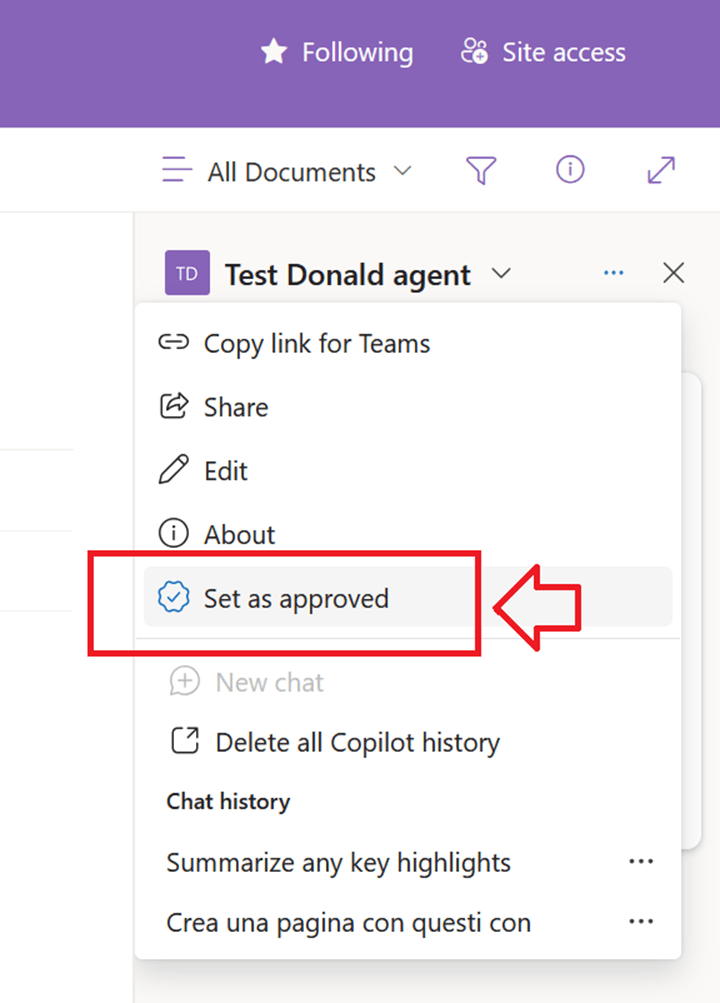
The new agent thus created is Personal and as such only accessible by the user who created it. When the site owner approves it, it becomes Published (Approved) at the site level and therefore accessible to the other (licensed) users of the site:

Once the agent has been approved, the relevant file is physically moved automatically by SharePoint to Site Assets > Copilots > Approved:

The newly approved agent can now be set as the site’s default agent:

There can only be one default agent for any given site:

Back to the question, then: can I configure a SharePoint Agent once and then have it as the site default agent on all sites?

To answer the question, I have created a second site collection called ‘Test Donald 2’, thus a Documents Agent 2, which has both sites (Test Donald and Test Donald 2) as sources:

I then saved it, approved it, and set it as the default for Test Donald 2:

The next step then was to copy the relevant .agent file from Test Donald 2 to Test Donald:

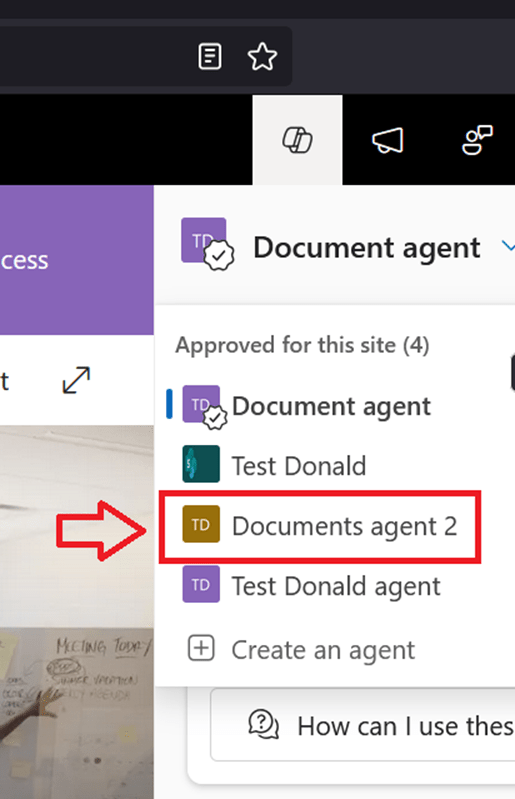
The agent just copied appears correctly in the list as an approved agent on the Test Donald site:

And it is also possible to select it and set it as site default agent:

Conclusions

The answer then is Yes, you can have a default agent that is always the same on all SharePoint sites, provided you accept the following limitations:

  • 20-source limitation (inherent limitation of SharePoint Agents, at least for now).
  • Customisation in Copilot Studio not yet available.
  • Manual copying of the .agent file and manual approval as default agent.

The copying of the .agent file could be automated with a Power Automate flow associated with a provisioning process. However, approving it as the default agent currently is not possible via API.

The Modern Intranet – Part 3: The Publishing Portal

< Part 2 – The role of SharePoint

Introduction

In this article, I will describe the information architecture and design phases of a SharePoint Online publishing portal. I will adopt an agile approach and provide simple and realistic guidelines based on my real-world experience as a Microsoft technologies consultant. For those interested in delving into the theoretical aspects, I recommend referring to the official documentation available on the Microsoft website.

Information Architecture

Information Architecture in SharePoint Online involves the deliberate organisation of sites, navigation, and content to ensure that users can easily find, access, and interact with information. It aims to create a logical and intuitive structure that aligns with the organisation’s goals and user needs. Let’s take a concise look at how to structure the high-level architecture and explore the best practices for the following aspects:

  • the portal’s site structure
  • the navigation
  • the content

The Sites Structure

One of the main differences between SharePoint Online and its on-premise predecessors is the fact that now the subsites have been pretty much deprecated. Rather than having a hierarchy of sites and subsites, in SharePoint Online it’s prereable to have a flat site structure.

There are several reasons why Microsoft has pushed for a flat site structure in SharePoint Online. Firstly, it promotes simplicity and ease of use by minimising complexity and reducing the number of clicks required to access information. Secondly, it enhances content discoverability and searchability.

On the other hand, the administration is somewhat affected when using a flat structure, as each site would have its own set of permissions, and the concept of permissions inheritance is no longer applicable. However, this is not necessarily a disadvantage.

The Home Site

The Home Site acts as the main gateway to the publishing portal, offering employees a personalized and captivating experience for accessing news, resources, and crucial information. Its structure can be seen in the diagram provided below at a very high level:

In one of the upcoming articles in this series, we will explore how to enhance and reinforce the concept of intranet’s home, using Microsoft Viva. However, for now, let’s keep it simple and let’s just assume that our entry point is the SharePoint Online Home Site.

To learn more

The Hub Sites

A hub site serves as a tool for organising and connecting related sites, bringing together content, navigation, and search. By creating a hub site, we can establish a unified experience, share common resources, and promote collaboration among teams or departments.

The simplest scenario is an organisation having only one hub consisting of the Home Site plus a few departmental sites. More complex scenarios may involve multiple hubs (e.g., one per department) and/or hubs for publishing content based on areas, topics, or teams.

To learn more

The Navigation

Navigation plays a crucial role in guiding users to relevant content and navigating the site structure ensuring a seamless user experience. From an information architecture perspective, a SharePoint Online intranet employs three key navigation elements: Global navigation, Hub navigation, and Local navigation.

Global navigation

Global navigation serves as the primary navigation mechanism across the entire Intranet. It helps users quickly navigate to important areas, such as the organisation’s Home site, team sites, or specific departments. It ensures consistent access to critical resources and delivers a sense of unity throughout the platform.

Hub navigation

Hub navigation serves as a secondary navigation layer specific to the hub. It facilitates navigation within the hub and provides contextually relevant links to associated sites, enabling users to seamlessly navigate between different sites within the hub’s ecosystem.

Local navigation

Local navigation focuses on providing navigation elements within individual sites. It helps users explore the content and structure of a specific site, allowing users to navigate between different sections, libraries, lists, or pages within the site. Local navigation enhances discoverability and enables users to find and access content within the context of their current location.

The Content Architecture

When designing the content architecture, several considerations can ensure an organised and efficient structure. Firstly, it is important to grasp the content requirements and the intended purpose of the intranet area that is going to host it. This understanding will guide the creation of a logical and intuitive structure. Begin by identifying the major content categories or topics and create top-level hubs or sites accordingly. Within each hub or site, further break down the content into sites, document libraries, lists, and pages based on their specific characteristics or usage patterns.

To enhance discoverability and navigation, implement metadata to tag and classify the content. This allows users to filter, sort, and search for information more effectively. Take advantage of content types to enforce consistency and standardisation across similar types of content, ensuring that the appropriate metadata fields are associated with each content type.

Consider implementing a content approval flow to govern the publishing process and ensure content quality and accuracy. This flow can involve multiple stakeholders and include various stages such as creation, review, approval, and publishing. Additionally, leverage version control to track changes and enable easy rollbacks if needed.

Last but not least, regularly assess the content structure to ensure it aligns with evolving business needs.

Roles in Content Architecture

Content creators – Content creators are responsible for keeping content updated and publishing news.

Content consumers – Content consumers are not represented in the counts as anyone who is using and viewing content throughout the three levels of navigation.

Owners – Intranet owners, departmental business owners, hub owners, and site owners should regularly engage with content consumer to ensure the right content is findable and usable. Content creators partner with site owners during the implementation and management stages.

Design

After defining the information architecture, attention turns to design. This encompasses the following elements:

  • Visual design: selecting appropriate themes, colour schemes, and layouts that align with the organisation’s branding and create a cohesive user interface.
  • Functionality and features: during the Design phase, it is important to gain an understanding of the available off-the-shelf building blocks (site templates, site designs, themes, web parts, page templates) to determine if and what level of customisation will be required.

To learn more

Site Templates and Site Designs

Sometimes, people tend to confuse the two terms. Therefore, let’s provide their definitions:

  • Site Template: in its most basic form, site templates are the key to the different types of sites you can create in SharePoint Online. Excluding the old backward compatible site templates (a.k.a. “Classic” site templates), there are only two site templates in SharePoint Online: “Team Sites” and “Communication Sites”. At a high level, the Communication Site is the preferred site template for publishing portals, while the Team Site template is more suitable for collaboration scenarios.
  • Site Design: a predefined set of actions that can be used to create new sites in SharePoint Online. A Site Design runs on top of an existing Site Template to create a new site or re-design an existing site.

Designing the Home Site

Microsoft have provided the SharePoint Lookbook which is an amazing resource with a variety of site designs to choose from. These include:

  • Organization
  • Department
  • Team
  • Community
  • Solutions
  • Schools

My advice here is always to go for an off-the-shelf solution. Therefore, simply choose one of the “Organization” site designs as a starting point for the intranet’s homepage.

The second step is to customize the site design to change the site logo and align the theme’s colors according to the company’s branding.

Next, implement the content architecture amending the home page’s layout and creating any other necessary pages, libraries and lists. Then, define the site’s Local Navigation.

The Modern Intranet – Part 2: The role of SharePoint

Introduction

The role of SharePoint in Microsoft 365 has evolved compared to its previous role in the “on-premises era.” In the past, SharePoint on-premises served as a comprehensive platform for content management, intranet portals, application development, search centres, collaboration, and community management.

Teams and Viva taking the lead

Nowadays, Microsoft Teams has taken over as the primary collaboration platform, while SharePoint has transitioned into a Content Storage provider role. A SharePoint team created within a Microsoft Teams team can be used as-is without modifying its structure or making customisations. Documents stored in SharePoint can be accessed from Microsoft Teams, eliminating the need to access SharePoint directly in most cases.

Microsoft Viva Engage has assumed the role of the community management platform. It seamlessly integrates with Microsoft Teams, requiring minimal interaction with SharePoint.

The Power Platform has become the go-to solution for rapidly developing line-of-business applications in the Modern Workplace. It integrates various data sources, not limited to SharePoint. For more complex scenarios, developers can leverage the Teams Toolkit, where SharePoint Framework (SPFx) is just one of the available options.

The Search System is now integrated across all Microsoft 365 systems, extending beyond SharePoint.

So, what is the actual role of SharePoint in Microsoft 365?

​ Well, SharePoint in Microsoft 365 still fulfils two fundamental roles:​

  • Collaboration: SharePoint Online offers capabilities for document management, authoring and co-authoring, and sharing documents among organisational and external users.​
  • Publishing: SharePoint Online serves as the primary building block for creating a publishing portal that delivers content, news, policies and procedures, search functionality, user profiles, links, and other relevant information to a broader audience, ideally encompassing the entire organisation or specific departments. ​

Furthermore, SharePoint Online serves as a foundational layer for enhancing the capabilities of Microsoft Teams:​

  • Providing content storage and document management capabilities within Microsoft Teams.​
  • Allowing for the integration of the Modern Intranet within Microsoft Teams through Microsoft Viva.

​Coming up next

The next blog post in the series will focus on SharePoint Online as the foundation for creating a publishing portal.

Part 3 – The Publishing Portal >

The Modern Intranet – Part 1: Unleashing Collaboration and Productivity

Let’s dive into the world of modern workplace intranets and explore how they empower organisations to harness the full potential of their workforce, data and business processes, regardless of their location.

Introduction

In today’s evolving work landscape, where hybrid and remote working have become the new normal, effective collaboration, information sharing and communication are key to fostering productivity and innovation. Organisations today are seeking robust and secure solutions to thrive in this evolving work landscape, to connect their teams, streamline business processes and cultivate a collaborative work culture, at the same time making sure their company data are secure and properly governed. In this blog post, we will dive into the world of modern workplace intranets and explore how they empower organisations to harness the full potential of their workforce, data and business processes, regardless of their location.

Key features and benefits of a Modern Intranet powered by Microsoft 365 suite of products

Seamless Communication and Collaboration

A Modern Intranet serves as a centralised hub for employees, ensuring seamless communication and collaboration. Integrating together Microsoft Teams, SharePoint Online, and Microsoft Viva, employees can easily connect with colleagues, share content, access company’s news and information, and collaborate together on projects in real-time. Whether in the office or working remotely, the Modern Intranet brings everyone together in a digital workplace, fostering a sense of unity. With shared calendars, task management, and instant messaging capabilities, teams can collaborate efficiently, breaking down silos and improving cross-functional communication.

Efficient Document Management

Document management lies at the heart of a Modern Intranet. Microsoft 365 provides robust document storage and sharing capabilities through SharePoint Online, allowing users to collaborate on documents simultaneously and share them internally in the organisation as well as externally. Version control and granular access controls ensure that information is managed securely and is always up to date. Additionally, powerful search functionalities and metadata tagging make it easy to locate documents quickly, enhancing productivity and reducing time wasted searching for critical information.

Personalised and Targeted Content

A Modern Intranet should not only serve as a repository of information but also provide personalized and targeted content to its users. Microsoft 365 leverages AI and machine learning to deliver relevant content to employees based on their roles, departments, or interests, enhancing productivity and reducing time spent searching for resources:

  • SharePoint Online can deliver personalised news feeds and powerful search capabilities.
  • SharePoint Syntex automatically processes and extracts information from documents, allowing users to classify, organise, and find relevant content more efficiently. It streamlines content management and improves the search experience.
  • Viva Topics creates a knowledge graph that connects and surfaces relevant information across various sources, using AI to identify topics, establish relationships, and generate topic pages that consolidate related content, providing users with a comprehensive understanding of a subject.

Business Process Optimisation

Microsoft 365 leverages the powerful combination of Power Platform, Microsoft Teams, and Dataverse to streamline and enhance organisational workflows:

  • The Power Platform empowers users to create custom applications, automate repetitive tasks, and gain valuable insights through data visualisation.
  • Microsoft Teams serves as a centralized communication hub, fostering seamless collaboration and real-time interaction among team members.
  • Additionally, Dataverse serves as a secure and scalable data storage platform, ensuring data integrity and facilitating integration across various Microsoft 365 applications.

By leveraging these tools, businesses can optimise their processes, improve productivity, and achieve enhanced operational efficiency.

Data Governance & Control

Maintaining the security of sensitive company information is crucial, especially when working in a hybrid or remote setting. SharePoint Online offers secure file sharing and content storage capabilities. With its granular permissions and access controls, organisations can ensure that only authorized personnel can view, edit, or share sensitive documents, mitigating the risk of data breaches. With Microsoft Purview, organisations can gain comprehensive insights into their data landscape, enabling them to discover, classify, and monitor data across various sources. Microsoft 365 labels further enhance data governance by allowing administrators to define policies and rules for data classification, retention, and protection. This integrated approach empowers businesses to establish a structured and compliant environment, ensuring data is appropriately governed, secured, and leveraged to drive informed decision-making.

Employee Engagement and Company Culture

Maintaining a strong company culture and employee engagement is vital, even more in a hybrid or remote work environment. A Modern Intranet fosters employee engagement through various features. Viva Engage, the enterprise social networking platform, enables employees to connect, share ideas, and celebrate achievements. It also serves as a platform to recognize employee contributions, share company updates, and promote internal events, creating a sense of belonging and unity among team members.

Conclusions

The Modern Intranet is a game-changer for organisations looking to enhance internal collaboration, streamline business processes, and drive employee engagement. As the world continues to embrace remote and mobile work, a modern workplace intranet equips organizations with the necessary infrastructure to adapt and thrive in the modern business landscape.

Coming up next

In the upcoming posts of this series, I will walk you through the entire process of building a Modern Intranet using the Microsoft suite of products. We’ll start from the conceptual and architectural phases and progress to the implementation and roll-out stages. Throughout this series, we will utilise the suite of tools mentioned in this post, while also drawing upon real-world examples and case studies based on my extensive experience as a Microsoft technologies consultant.