Copilot Studio announcements at Microsoft Build 2025

In this post, and in the above-linked video,  I’ll give you an overview of all the new features of Copilot Studio announced during the just ended Microsoft Build 2025 conference, broken down by macro categories: multi-agent support, models, knowledge, tools, analytics, publishing, application lifecycle management.

Multi Agents

Multi-Agent Orchestration

Rather than relying on a single agent to do everything—or managing disconnected agents in silos—organizations can now build multi-agent systems in Copilot Studio, where agents delegate tasks to one another.

In the demo showed in my video, we have a banking agent that helps customers with their banking needs (for example checking account balances, transferring funds, report a stolen card and so on): previously you would have to build a single agent with all of these capabilities, now instead you can break a complex agent down into many connected agents each one specialized in a single functionality.

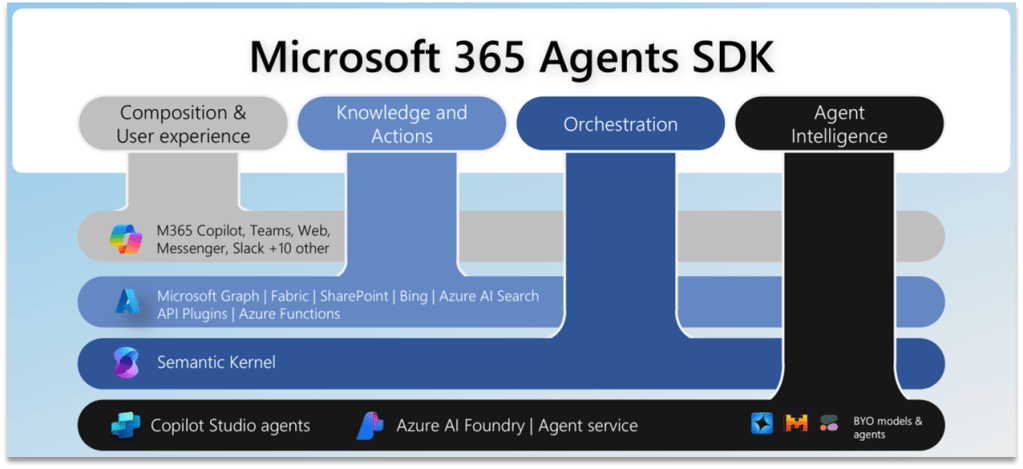
Adding a new agent is very easy: you can add an agent from Copilot Studio or the Microsoft 365 SDK, Microsoft Fabric, Azure AI Foundry. And in the future you’ll be able to connect to third party agents, via the A2A protocol.

Multilingual capability for Generative Orchestrator

Microsoft now provides a catalog of managed agents you can browse and install from within Copilot Studio. These agents are complete solutions, that you can use as template and customize for your needs.

Models

Copilot Tuning

A feature that was long-waited is Copilot Tuning. Copilot Tuning allows you to fine-tune large language models (LLMs) by using your own data. That’s implement in a task-specific fashion, let’s say in a controlled way, let’s see an example.

The first step is configuring your model. Click create new. Next, you’ll provide the model name, a description of the task you’d like to accomplish, and select a customization recipe tailored to the specific task type.

Next, you’ll give the model instructions to help it identify and prepare the most relevant data from your SharePoint sites.

Next, you need to provide the training data or knowledge, which forms the foundation of your fine tuned model. Currently only SharePoint sources are supported.

The final step in configuring is to define who can use the fine-tuned model to build agents in Microsoft 365 copilot by using security groups.

Now that your model is configured, you’re ready to prepare your training data with data labeling. Data labeling is the process of identifying the best examples that you want the model to learn from.

Once your data are processed, you’ll receive an email notification indicating that your data is ready for labelling.

The model you have fine-tuned can be used in M365 Copilot Agent Builder. So from the new M365 Copilot interface you select Create Agent, and you’ll be prompted to select the purpose of your agent: general purpose or task-specific. Select task specific to see the list of fine-tuned models that are available to you. You select a model, then from now on you proceed to building and customize your agent as usual.

Bring Your Own Model as a primary response model

We are now offered the possibility to fine-tune the LLM model used by Copilot Studio while building our agents, in two different ways: at agent level and at tool level. Let’s start with the agent level.

Once you have your agent initialized, go to the settings, in the generative AI tab, you have now a drop down to change the primary response model: you have some preset options plus the possibility to connect to AI Foundry and select your own published models from AI Foundry.

Bring Your Own Model as a primary response model

The second way how you can introduce a fine-tuned model in our Copilot Studio agents is via the prompt tool.

The prompt tool allows you to specify a task to be completed by Copilot Studio, describing it in natural language, and copilot studio will call it when it reckons necessary.

Now you have the possibility to specify a model for your prompt. You have some of the managed models already available for you, the ones that are curated by Microsoft. In addition it’s also possible to use one of 1900 plus Azure AI Foundry models based on your specific  use case.

Knowledge

SharePoint lists, Knowledge Instructions

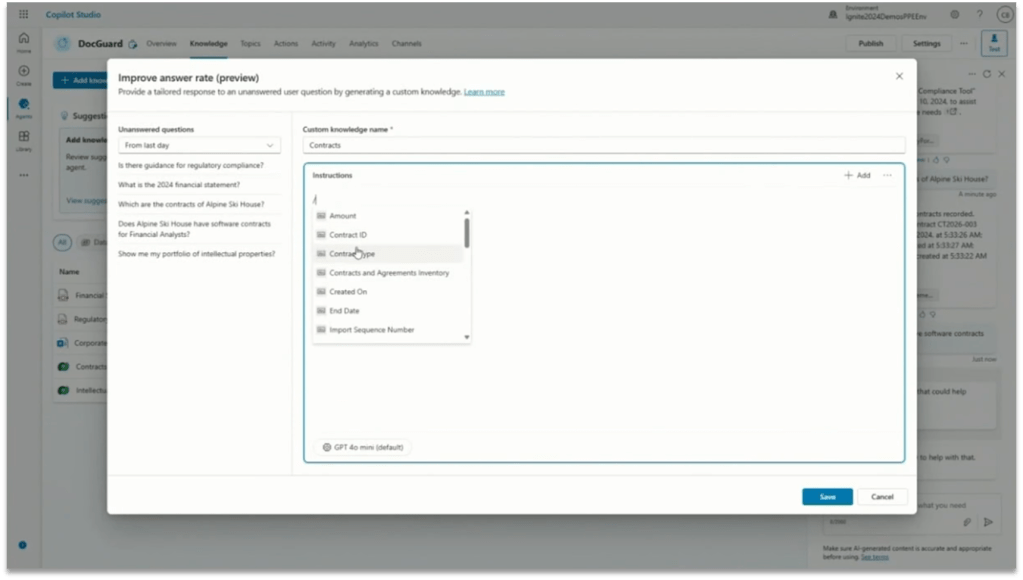
Copilot Studio is making progress on the Knowledge management as well. Now it supports SharePoint Lists, as well as uploading files grouping them together as a single knowledge base. Plus, now you have the option to write Instructions at knowledge level.

Tools

Computer Use

I think Computer Use is by far the most impressive tool added to Copilot Studio. Unfortunately it’s going to be available only for big customers in USA, at least for now.

Computer Use allows Copilot Studio Agents to interact with desktop apps and websites like a person would—clicking buttons, navigating menus, typing in fields, and adapting automatically as the interface changes. This opens the door to automating complex, user interface (UI)-based tasks like data entry, invoice processing, with built-in reasoning and full visibility into every step.

Dataverse Functions

You have also Dataverse Functions in preview, you can create one from the Power Apps portal, the function can have inputs and outputs and a formula containing your business logic: and then you can add that function to your agent selecting the Dataverse connector and choosing Unbounded Action.

You can configure it with the appropriate inputs and outputs, and then that becomes one more tool at your agent disposal.

Intelligent Approvals in Agent Flows

Agent Flows is a new tool we have been seeing for few weeks now, Microsoft is actively working on it and at the Build Conference they presented Intelligent Approvals.

Intelligent Approvals inserts an AI-powered decision-making stage directly within the Advanced Approval action. You simply provide natural language business rules and select your desired AI model: the model then evaluates submitted materials—images, documents, databases, or knowledge articles—to deliver a transparent approve or reject decision, complete with a detailed rationale.

Analytics

Evaluation Capabilities

The challenge in building any kind of agent is making sure it responds accurately when users ask different types of questions.

This is where the new evaluation capabilities in Copilot Studio come in. Now you can run automated tests against your agent directly from the testing panel. You can upload your set of questions, import queries from the chat history or even generate questions using AI. You can review and edit each question before running the test. Then you can run the evaluation and get a visual summary of the evaluation results.

Publishing

Publishing to WhatsApp and SharePoint

You can now publish your agent to WhatsApp and, more importantly, you can publish it to SharePoint! That’s another long-waited feature, because so far it wasn’t possible to have a SharePoint Agent with actions and other advanced features, now finally you can.

Let me just point out here that if you create your SharePoint Agent from SharePoint, you can’t customize it in Copilot Studio yet. So this works only if you start from Copilot Studio and then publish to SharePoint, the vice versa is not possible yet.

Code Interpreter

Generate a chart via Python code

Copilot Studio agents can now generate charts, and that’s done using the new Code Interpreter feature. Python code is generated automatically in reply to a prompt, you can see it and reuse it, and then it executes and generates the chart as the user’s answer.

ALM

Source code integration

With native source control integration you can take your agents in your environment and connect it to a source control repository, such as Azure DevOps, and make commits from the UI directly, so that everything you do is source controlled and is managed in the same way that you would expect any software to be managed.

Edit agent in VS Code

And finally, for the real nerds, the extension to Visual Studio Code allows you to clone agents to your machine locally and start editing the code behind it!

You’ll get here syntax errors highlighting, auto complete, documentation and so forth.
Copilot Studio + Google Search + MCP = Turbocharged AI agents

In my video below we’ll look at something that’s currently still unseen: we’re going to use the MCP SDK for C# and .NET to build an MCP server that leverages Google search, and we’ll exploit it in an AI agent created with Copilot Studio!

Model Context Protocol (MCP): Everything you need to know

Introduction

Model Context Protocol, MCP, the new open-source standard that organizes how AI agents interact with external data and systems.

In this post we will see how MCP works, what it is, how it is applied and what its current limitations are. Watch my video here above for a further practical example of an MCP server coded in C# and .NET.

The problem

So, what problem is MCP trying to solve here?

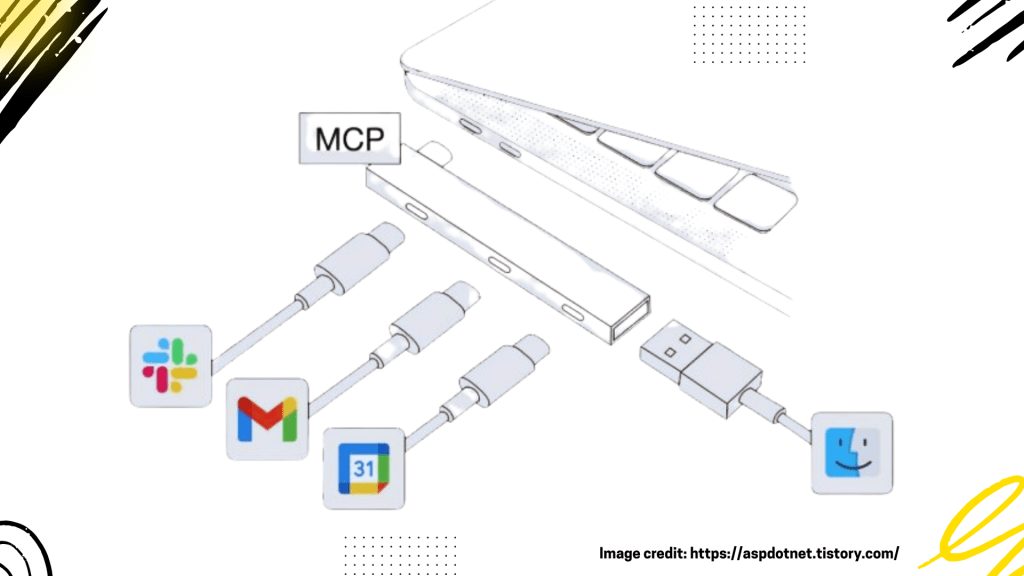
Let’s imagine we want to connect four smartphones to our computer to access their data: until some time ago, I would have needed four different cables with different connectors and maybe even four USB ports.

The solution

Then the USB-C standard came along and sorted everything out: now I only need one type of cable, one type of port, one charger, and I can connect and charge phones of any brand.

So, think of MCP as the USB-C for AI agents:

MCP standardizes the way AI agents can connect to data, tools, and external systems. The idea, which isn’t all that original, is to replace the plethora of custom integration methods—each API or data source having its own custom access method—with a single, consistent interface.

According to MCP specifications, an MCP server exposes standard operations, lists what it offers in a standardized manner, and can perform an action when an AI agent, the MCP client, requests it. On the client side, the AI agent reads what the server has to offer, understands the description, parameters, and the meaning of the parameters, and thus knows if and when it is useful to call the server and how to call it.

Here, if you think about it, it’s really a stroke of genius—simple yet powerful. On one side, I have a standard interface, and on the other side, I have an LLM that learns the server’s intents from the standard interface and thus understands if and when to use it. And all of this can even work automatically, without human intervention.

The MCP protocol

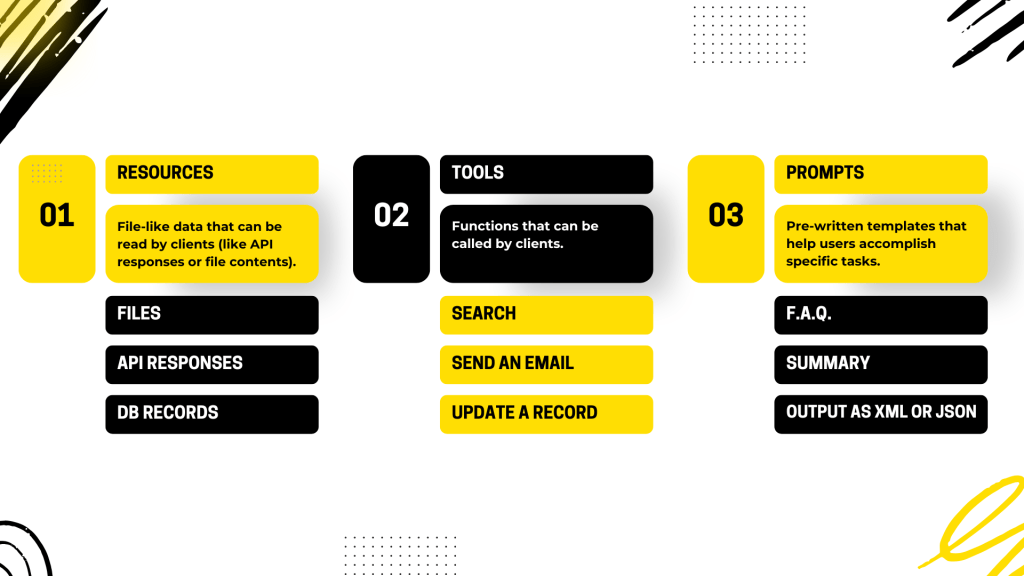
So, let’s get a bit practical. MCP helps us standardize three things, fundamentally:

  • Resources.
  • Tools.
  • Prompts.

Resources

An MCP server can provide resources to calling agents, and by resources, we mean context or knowledge base. For example, we can have an MCP server that encapsulates your database or a set of documents, and any AI agent can query your MCP server and obtain documents relevant to a prompt requested by its user. The brilliance here lies in having completely decoupled everything, meaning the MCP server has no knowledge of who is calling it, and AI agents use MCP servers without having hardcoded links or parameters in their own code.

Tools

Tools are simply functions that the MCP server exposes on its interface, nothing more, nothing less, and that AI agents can call.

Prompts

Prompts, finally, allow MCP servers to define reusable prompt templates and workflows, which AI agents can then present to users, as well as to the internal LLMs of the agent itself, to interact with the MCP server.

MCP marketplaces

The MCP standard was proposed by Anthropic last November, and within a few months, it has literally taken off. There are already numerous implementations of MCP servers scattered across the internet, covering practically everything. So, you can really go wild creating all sorts of AI agents simply by integrating these servers into your projects.

To facilitate the search for these MCP servers, some marketplaces have also emerged, and I mention the most important ones in this slide. I’ve counted five so far:

I would say the most comprehensive ones at the moment are the first two, MCP.so and MCPServers.org. However, it’s possible that Anthropic might decide to release its official marketplace in the near future.

Areas of improvement

We have seen how MCP is a very promising standard, but what are its weaknesses? If there are any. Well, there are a few at the moment, but that’s understandable since it’s a fairly young standard. Very young, I would say. Currently, the biggest limitation is the lack of a standard authentication and authorization mechanism between client and server.

Work is being done on it. The idea is to integrate OAuth 2.0 and 2.1. Another significant shortcoming is that there is currently no proper discovery protocol for the various MCP servers scattered across the network. Yes, we’ve seen that there are marketplaces, but if I wanted to allow my AI agent to perform discovery completely autonomously, to find the tools it needs on its own, well, that’s not possible yet.

We know that Anthropic is working on it. There will be a global registry sooner or later, and when it finally becomes available, we will definitely see another significant boost in the adoption of this protocol. Additionally, the ability to do tracing and debugging is missing, and that’s no small matter. Imagine, for example, that our AI agent calling these MCP servers encounters an error or something doesn’t go as expected:

What do we do? Currently, from the caller’s perspective, MCP servers are black boxes. If something goes wrong, it’s impossible for us to understand what’s happening. There’s also no standard for sequential calls and for resuming a workflow that might have been interrupted halfway due to an error.

For example, I have an AI agent that needs to make 10 calls to various MCP tools, and I encounter an error on the fifth call. What do I do? The management of the retry resume state is entirely the client’s responsibility, and there is no standard; everyone implements it in their own way. So, MCP is still young and has significant limitations. However, it is developed and promoted by Anthropic, has been well-received by the community, adopted by Microsoft, and also by Google, albeit with some reservations in this case.

Conclusions

So, I would say that the potential to become a de facto standard is definitely there, and it’s certainly worth spending time to study and adopt it in our AI agents.

Subscribe to my blog and YouTube channel for more ☺️

Goodbye LLM? Meta revolutionises AI with Large Concept Models!

In recent years, Large Language Models (LLM) have dominated the field of generative artificial intelligence. However, new limitations and challenges are emerging that require an innovative approach. Meta has recently introduced a new architecture called Large Concept Models (LCM), which promises to overcome these limitations and revolutionise the way AI processes and generates content.

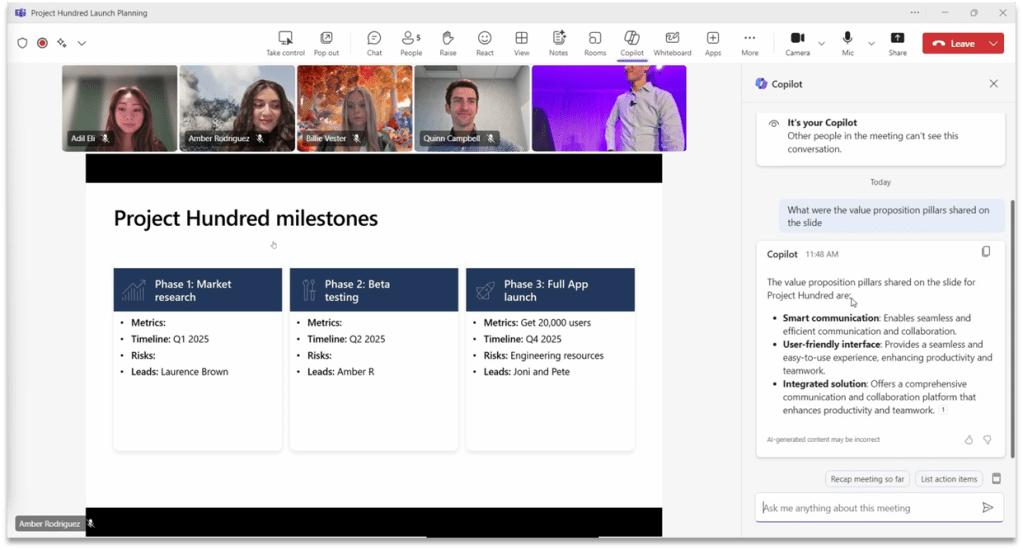
In recent years, Large Language Models (LLM) have dominated the field of generative artificial intelligence. However, new limitations and challenges are emerging that require an innovative approach. Meta has recently introduced a new architecture called Large Concept Models (LCM), which promises to overcome these limitations and revolutionise the way AI processes and generates content.

Limitations of LLMs

LLMs, such as ChatGPT, Claude, Gemini etc. need huge amounts of data for training and consume a significant amount of energy. Furthermore, their ability to scale is limited by the availability of new data and increasing computational complexity. These models operate at the token level, which means they process input and generate output based on single word parts, making reasoning at more abstract levels difficult.

Introduction to Large Concept Models (LCM)

Large Concept Models represent a new paradigm in the architecture of AI models: instead of working on the level of tokens, LCMs work on the level of concepts. This approach is inspired by the way we humans process information, working on different levels of abstraction and concepts rather than single words.

How LCMs work

LCMs use an embedding model called SONAR, which supports up to 200 languages and can process both text and audio. SONAR transforms sentences and speech into vectors representing abstract concepts. These concepts are independent of language and mode, allowing for greater flexibility and generalisation capabilities.

Advantages of LCMs

Multi-modality and Multilingualism

LCMs are language and mode agnostic, which means they can process and generate content in different languages and formats (text, audio, images, video) without the need for re-training. This makes them extremely versatile and powerful.

Computational Efficiency

Since LCMs operate at the concept level, they can handle very long inputs and outputs more efficiently than LLMs. This significantly reduces energy consumption and the need for computational resources.

Zero-Shot generalisation

LCMs show an unprecedented zero-shot generalisation capability, being able to perform new tasks without the need for specific training examples. This makes them extremely adaptable to new contexts and applications.

Challenges and Future Perspectives

Despite promising results, LCMs still present some challenges. Sentence prediction is more complex than token prediction, and there is more ambiguity in determining the next sentence in a long context. However, continued research and optimisation of these architectures could lead to further improvements and innovative applications.

Conclusions

Large Concept Models represent a significant step forward in the field of artificial intelligence. With their ability to operate at the concept level, multimodality and multilingualism, and increased computational efficiency, LCMs have the potential to revolutionise the way AI processes and generates content. It will be interesting to see how this technology will develop and what new possibilities it will open up in the future of AI.

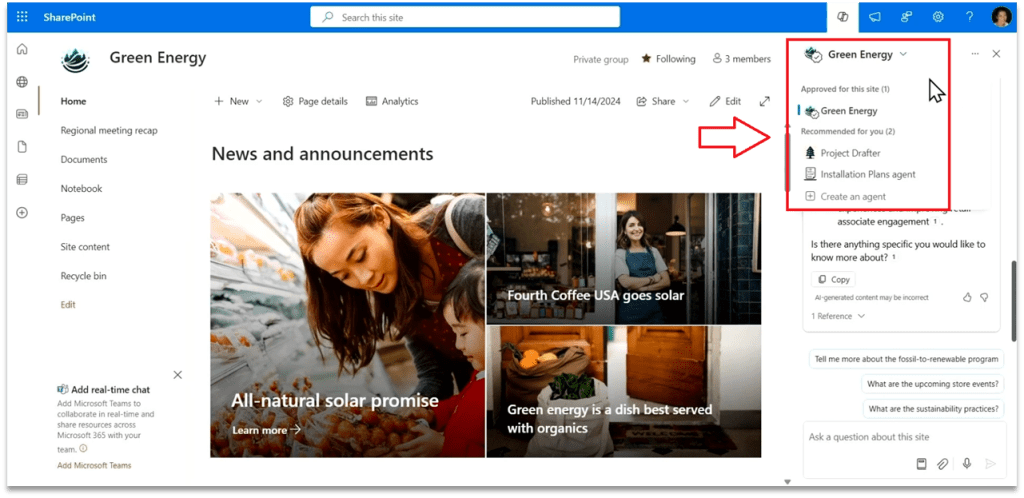
Messing around with SharePoint Agents

A customer asked me a question about SharePoint Agents that I was unable to answer. Having then realised that perhaps SharePoint Agents are less trivial than I thought, I decided to take the question head-on, doing some tests to see if there was an answer that makes sense.

A few days ago I wrote an article on the Copilot Agents (you can find it here), and as you can see from reading it, I relegated the SharePoint Agents to the end, giving them just a standard paragraph that in truth adds nothing to what we have already known for a while.

But then it happened that during a demo the other day, a customer asked me a question about SharePoint Agents that I was unable to answer. Having then realised that perhaps SharePoint Agents are less trivial than I thought, I decided to take the question head-on that afternoon, doing some tests to see if there was an answer that makes sense.

This article is the result of those thoughts, and assumes a basic knowledge of SharePoint Agents.

The question

The customer’s question was: ‘Having one agent per SharePoint site seems excessive and unmanageable to me, how can I instead create my own “official” agent once, and make it the default agent for all SharePoint sites?’.

Let’s try to give an answer

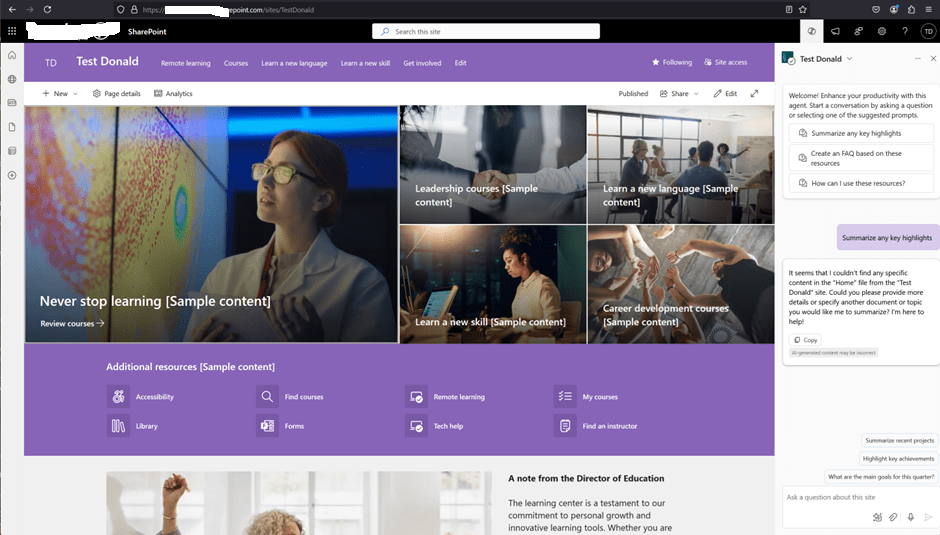
I created a test site, called “Test Donald“:

The site collection has its own default SharePoint Agent, having the same name as the site. This default agent does not have a corresponding .agent file in the site. Nor is there an option to edit the default agent. As we already know, however, I can create more agents, therefore I created a second one:

The new agent can be created directly from the menu, or by selecting a library or documents in a library:

(there must be at least 1 document in the library, otherwise the ‘Create an agent’ button won’t appear).

Please note that it is not (yet) possible to customise a SharePoint Agent in Copilot Studio:

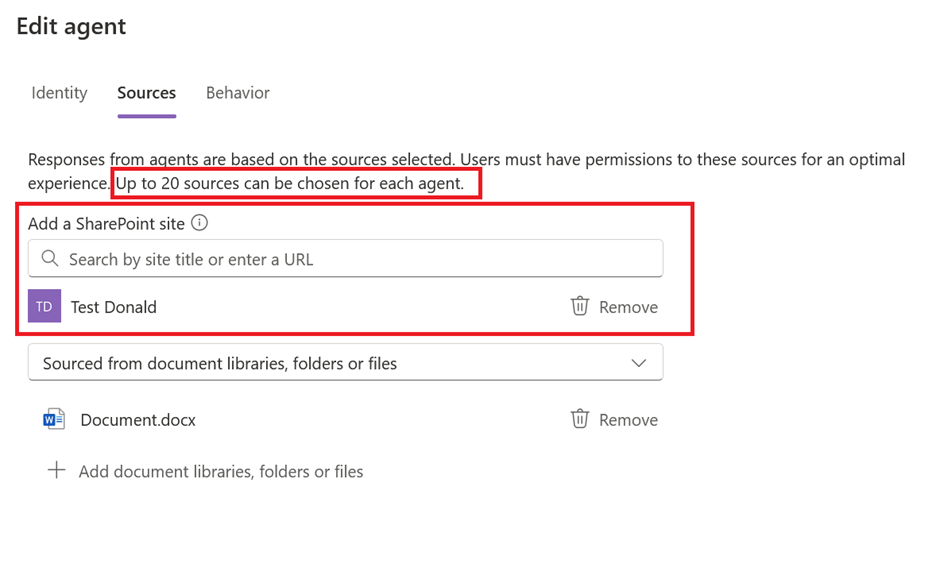
A SharePoint Agent published on one site can also be based on knowledge from other SharePoint sites, but it’s important to bear in mind that only a maximum of 20 knowledge sources can be added:

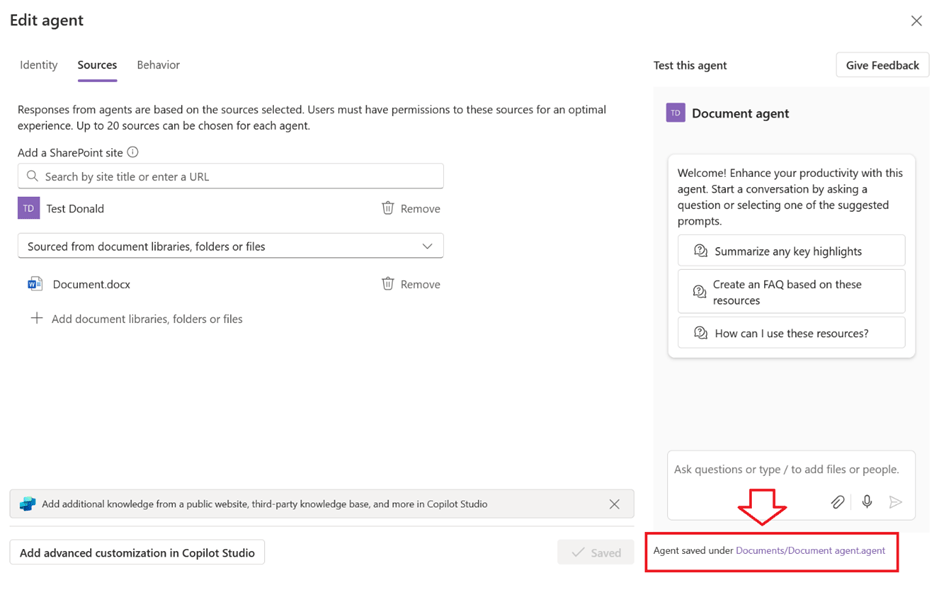
The Edit popup shows the location of the saved agent:

Navigating the link will lead to the location of the associated .agent file:

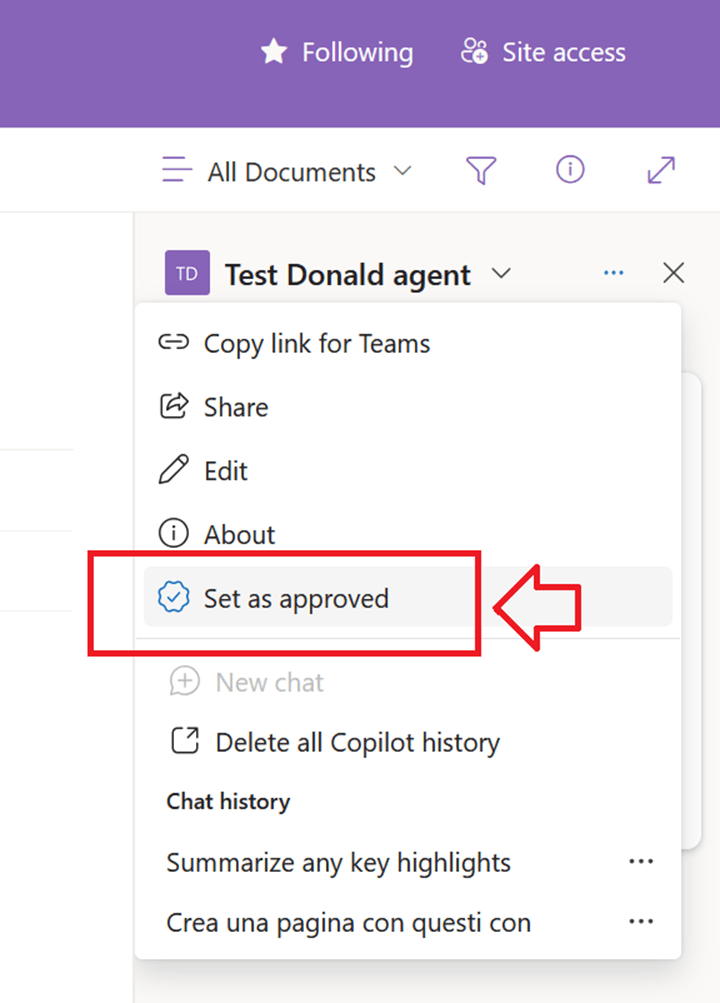
The new agent thus created is Personal and as such only accessible by the user who created it. When the site owner approves it, it becomes Published (Approved) at the site level and therefore accessible to the other (licensed) users of the site:

Once the agent has been approved, the relevant file is physically moved automatically by SharePoint to Site Assets > Copilots > Approved:

The newly approved agent can now be set as the site’s default agent:

There can only be one default agent for any given site:

Back to the question, then: can I configure a SharePoint Agent once and then have it as the site default agent on all sites?

To answer the question, I have created a second site collection called ‘Test Donald 2’, thus a Documents Agent 2, which has both sites (Test Donald and Test Donald 2) as sources:

I then saved it, approved it, and set it as the default for Test Donald 2:

The next step then was to copy the relevant .agent file from Test Donald 2 to Test Donald:

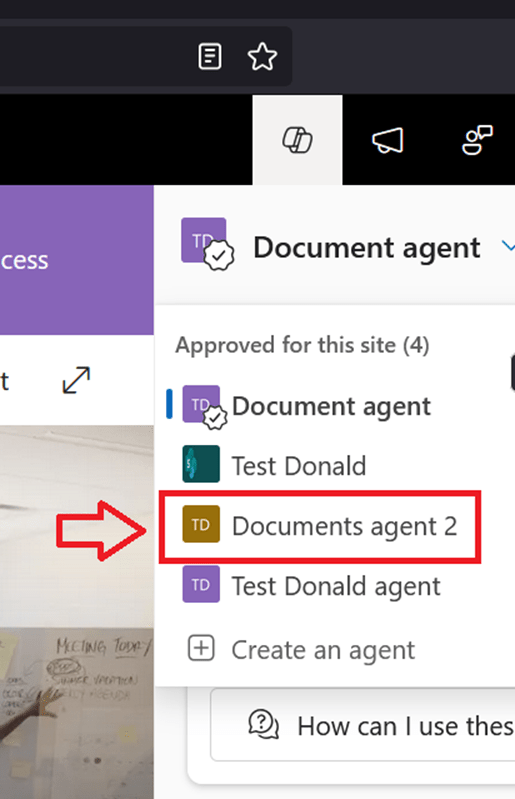
The agent just copied appears correctly in the list as an approved agent on the Test Donald site:

And it is also possible to select it and set it as site default agent:

Conclusions

The answer then is Yes, you can have a default agent that is always the same on all SharePoint sites, provided you accept the following limitations:

  • 20-source limitation (inherent limitation of SharePoint Agents, at least for now).
  • Customisation in Copilot Studio not yet available.
  • Manual copying of the .agent file and manual approval as default agent.

The copying of the .agent file could be automated with a Power Automate flow associated with a provisioning process. However, approving it as the default agent currently is not possible via API.

An introduction to Microsoft 365 Copilot Agents

In this article, I will provide an overview of Copilot Agents, explaining what they are, which out-of-the-box agents Microsoft has released to date, what types of agents we can customize, and I will also explain what autonomous agents and SharePoint Agents are.

Creating, extending and customising Copilot agents is a fundamental process for adapting functionality to specific business or personal needs.

In this article, I will provide an overview of Copilot Agents, explaining what they are, which out-of-the-box agents Microsoft has released to date, what types of agents we can customize, and I will also explain what autonomous agents and SharePoint Agents are.

What are Copilot Agents?

Agents are scoped versions of Microsoft 365 Copilot that act as AI assistants to automate and run business processes. They enable customers to bring custom knowledge, skills, and process automation into Microsoft 365 Copilot for their specific needs. 

Pre-built Copilot agents

Microsoft has launched a wide range of pre-built agents that span multiple business functions. These agents can be deployed immediately or further configured by incorporating your organisation’s knowledge and skills.

At the time I’m writing they are all in preview. A brief description of the available pre-built agents is provided here below:

  • Website Q&A: Answers common questions from users using the content on your website.
  • Team Navigator: Assists employees in finding colleagues and their hierarchy within the organisation.
  • IT Helpdesk: Empowers employees to resolve issues and create/view support tickets.
  • Store Operations: Improves the efficiency of retail frontline workers by enabling easy access to store procedures and policies.
  • Case Management: Provides around-the-clock automated support to customers by understanding their issues and creating cases.
  • Safe Travels: Provides answers to common travel questions and related health and safety guidelines.
  • Inclusivity: Helps employees to have a safe place to ask questions and to learn how to activate inclusivity in a modern and diverse workforce.
  • Sustainability Insights: Enables users to easily get insights and data about a company’s sustainability goals and progress.
  • Weather: Gets the current weather conditions and forecast.
  • Benefits: Provides personalized information to your employees on benefits offered to them.
  • Citizen Services: Enables Public Sector Organizations to assist their citizens with information about services available to them.
  • Financial Insights: Helps financial services professionals get information from their organization’s financial documents.
  • Self-Help: Enables customer service agents to resolve issues faster.
  • Awards and Recognition: Streamlines the process of nominating and recognizing your employees for their contributions and achievements.
  • Leave Management: Streamlines the leave request and time-off process for your employees.
  • Wellness Check: Conducts automated wellness checks to gauge employee morale.
  • Sales Qualification: Enables sellers to focus their time on the highest priority sales opportunities.
  • Sales Order: Automates the order intake process from entry to confirmation by interacting with customers and capturing their preferences.
  • Supplier Communications: Autonomously manages collaboration with suppliers to confirm order delivery, while helping to prevent potential delays.
  • Finance Reconciliation: Helps teams prepare and cleanse data sets to simplify and reduce time spent on the financial period close process.
  • Account Reconciliation: Automates the matching and clearing of transactions between subledgers and the general ledger, helping accountants and controllers speed up the financial close process.
  • Time and Expense: Autonomously manages time entry, expense tracking, and approval workflows.
  • Customer Intent: Enables evergreen self-service by continuously discovering new intents from past and current customer conversations across all channels, mapping issues and corresponding resolutions maintained by the agent in a library.
  • Customer Knowledge Management: Helps ensure knowledge articles are kept perpetually up to date by analysing case notes, transcripts, summaries, and other artifacts from human-assisted cases to uncover insights.
  • Scheduling Operations: Enables dispatchers to provide optimized schedules for technicians, even as conditions change throughout the workday.

How do I create a Copilot Agent?

Before diving into how we can extend Copilot, it is essential to understand two concepts:

  • the anatomy of Microsoft 365 Copilot,
  • the two main types of agents that we can create: Declarative Agents and Custom Engine Agents.

Anatomy of Microsoft 365 Copilot

Foundation Models

Foundation models are large language models (LLMs) that form the core of Copilot’s capabilities. These models, such as GPT-4, are trained on vast amounts of data and use deep learning techniques to understand, summarize, predict, and generate content. They provide the underlying AI intelligence that powers Copilot’s functionality.

User Experience

The user experience component focuses on how users interact with Copilot within Microsoft 365 apps like Word, Excel, PowerPoint, Outlook, and Teams. It ensures that the integration is seamless and intuitive, allowing users to leverage Copilot’s capabilities without disrupting their workflow. This includes features like drafting, summarizing, and answering questions in the context of the user’s work.

Orchestrator

The orchestrator is responsible for coordinating the various components of Copilot and ensuring that they work together harmoniously. It manages the flow of information between the foundation models, user data, and the Microsoft 365 apps, ensuring that responses are accurate and relevant to the user’s context.

Knowledge

The knowledge component involves the integration of Microsoft Graph, which includes information about users, activities, and organizational data. This allows Copilot to access and utilize relevant data from emails, chats, documents, and meetings to provide contextually appropriate responses and insights.

Skills

Skills refer to the specific capabilities and functionalities that Copilot offers within different Microsoft 365 apps. For example, in Word, Copilot can help users create, understand, and edit documents; in Excel, it can assist with data analysis and visualization; and in Teams, it can facilitate communication and collaboration.

Declarative Agents

Declarative agents are designed to be configured through predefined rules and well-defined scenarios. These agents function on the basis of declarations of intent and specific conditions that guide their behaviour.

  • Ease of Use: They do not require in-depth programming knowledge.
  • Speed of Implementation: They can be set up quickly using intuitive graphical interfaces.
  • Limitations: They might be less flexible when it comes to handling complex scenarios outside the preset rules.

Custom Engine Agents

Custom engine agents offer the highest level of control and customisation.

  • Flexibility: They allow detailed customisation by writing code and integrating advanced algorithms.
  • Power: They can handle complex and dynamic scenarios requiring sophisticated and adaptive logic.
  • Development Effort: They require more technical expertise and more time for development and maintenance.

Blue pill or pink pill…?

When it comes to extending Copilot, you can decide to swallow the blue pill or swallow the pink pill…

Staying on the Blue side of things, you’re going to reuse the foundations of Copilot: you’re going to reuse the UI, you’re going to reuse the templates and also the Microsoft Orchestrator. You’re going to add Knowledge and Skills instead.

On the other hand, if you swallow the pink pill, you are going to completely replace the Copilot engine with your own custom.

Swallowing the blue pill: creating a Declarative Agent

Declarative agents are a collection of custom knowledge and custom skills hosted on the Microsoft 365 Copilot orchestrator and foundation models.

You can add knowledge to Declarative Agents via connectors, and skills via plugins.

Adding Knowledge

Graph Connectors

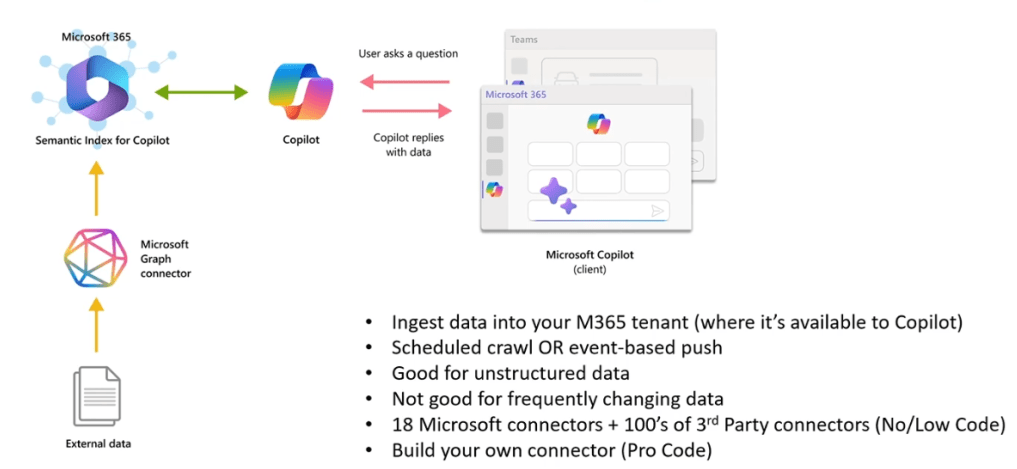
Microsoft Graph Connectors provide a platform to ingest your unstructured data into Microsoft Graph, so that Copilot can reason over the entirety of your enterprise content. Microsoft Graph Connectors existed before Copilot, in fact it powers other Microsoft 365 experiences, like Microsoft Search.

Power Platform Connectors

Power Platform Connectors are essentially API wrappers that allow Copilot Agents to interact with various external services and applications. These connectors enable Copilot to perform a wide range of tasks by connecting to services both within the Microsoft ecosystem (like Office 365, SharePoint, Dynamics 365) and outside it (such as Twitter, Google services, Salesforce). There are three main types of connectors:

  1. Standard Connectors: These are included with all Copilot Studio plans and cover common services in Copilot Studio.
  2. Premium Connectors: Available in select Copilot Studio plans, these offer more advanced functionalities in Copilot Studio.
  3. Custom Connectors: These allow you to connect to any publicly available API for services not covered by existing connectors in Copilot Studio.

By leveraging these connectors, Copilot Agents can access and utilise data from various sources, enhancing their capabilities and making them more dynamic and responsive to specific business needs.

Adding Skills

Plugins

Plugins don’t ingest data, they look directly in real-time at the external systems, they can also interact with the external systems, that is not only read data but also write data.

There are 3 types of plugin:

  • Copilot Studio Actions: plugins that extend the functionality of Microsoft 365 Copilot, allowing users to perform specific tasks, retrieve data, and interact with external systems. By leveraging a low-code interface, Copilot Studio makes it accessible for users without extensive technical knowledge to create and manage these actions.
  • Message Extensions: they are the well known search and action capability for Microsoft Teams, that now work also as plugins for Copilot agents.
  • API Plugins: they enable declarative agents in Microsoft 365 Copilot to interact with REST APIs that have an OpenAPI description.

The pink pill: Custom Engine Agents

Custom engine agents are developed using custom foundation models and orchestrators and can be tailored to specific enterprise needs with your own stack. Custom engine agents currently work as standalone Teams apps.

These are an evolution of Microsoft Teams bots and, just like before, you can use Teams AI Library and Teams Toolkit to create them. I intend to come back to Custom Engine Agents with a dedicated article.

Declarative? or Custom Engine?

When to create a declarative agent:

  • You want to take advantage of Copilot’s model and orchestrator.
  • You have external data that you want to make available to Copilot to reason over via a Microsoft Graph connector.
  • You have an existing API that could be used as an API plugin for read and write access to real-time data.
  • You have an existing Teams message extension that you can use as a plugin.

When to build a custom agent:

  • You want to use specific models for your service.
  • You need agentic AI support.
  • You want your service to be independent from Microsoft 365 Copilot, accessible to all Microsoft 365 users regardless of their Copilot licensing status.

Autonomous Agents

An autonomous agent is an AI system that can perform complex tasks independently, that is without direct human intervention.

Let’s see a typical example of an autonomous agent created with Copilot: a prospective client sends you an email requesting an engagement. As soon as the email is received, the agent gets to work, extracting the relevant details.

It then follows a series of steps, including verifying any previous engagement with this customer, validating the industry sector, summarising the client needs, it then writes and sends an email to the relevant expert in your organisation, with all the client details.

The particular feature that makes a Copilot Agent an autonomous agent is the fact that it can activate by itself: this is possible thanks to the event triggers, defined in Copilot Studio, which may kind of remind you the Power Automate triggers.

SharePoint Agents

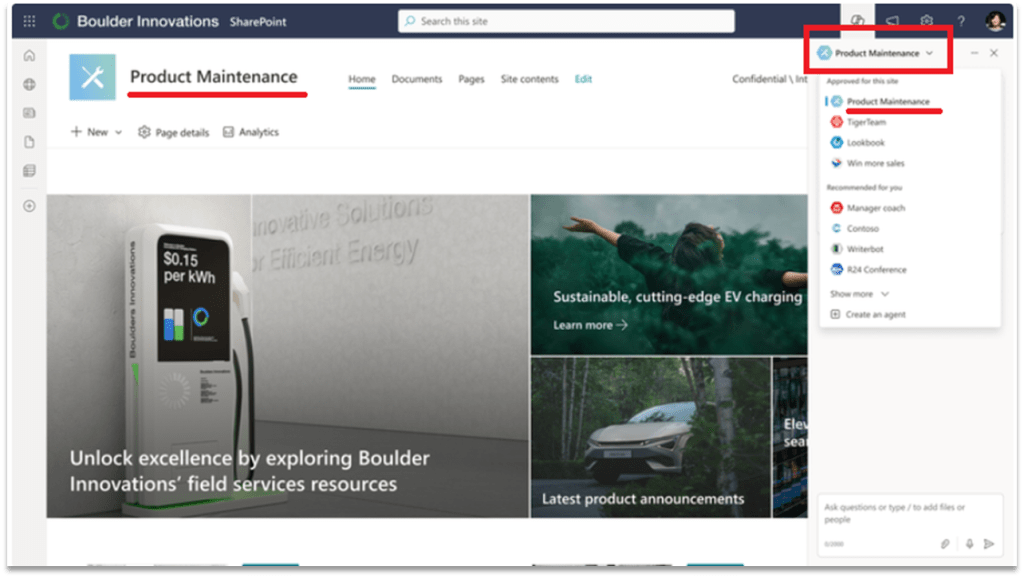
SharePoint Agents are a specialised type of agents, tailored on SharePoint Online and that can be created outside of Copilot Studio. Every SharePoint site includes an agent scoped for the site’s content, ready to assist you instantly. These ready-made agents are an easy starting point to get answers without combing through the site or digging around with search—they can be used immediately without any customization.

For specific projects or tasks, any SharePoint user can create a customized agent based on the relevant files, folders, or sites, with just one click. 

The SharePoint Agents can easily be shared via email or within Teams chats. Not only are coworkers able to use the agent that you shared, but @mentioning the agent in a group chat setting gives the team a subject matter expert ready to assist and facilitate collaboration.  

They adhere to existing SharePoint user permissions, they don’t broadly share the files you selected whenever you share the agent with others in your organization.

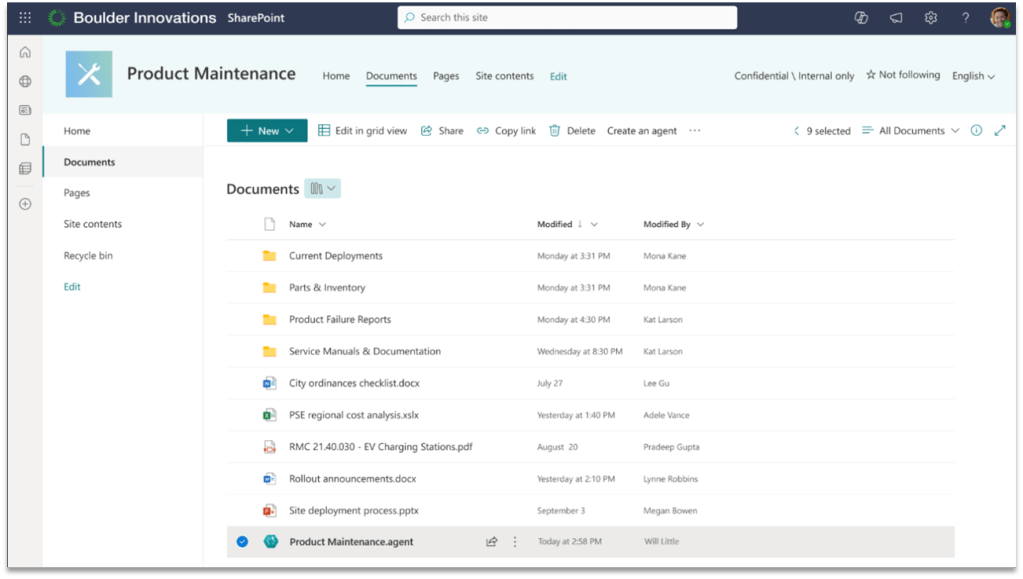
Agents created using SharePoint data are file-based. They are stored within the same site where they were created. Since they are files, you can manage them just like you manage other files. You can copy, move, delete, or archive them.  

A recap of #MSIgnite news for Modern Work

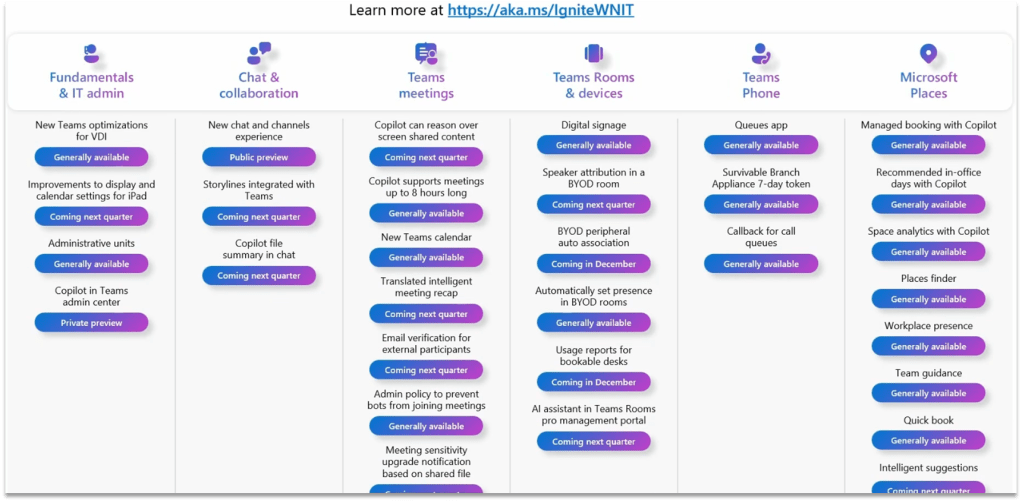
This article is a summary of all the news and previews about Modern Work presented by Microsoft at the Ignite 2024 event.

Introduction

This article is a summary of all the news and previews about Modern Work presented by Microsoft at the Ignite 2024 event.

Microsoft Teams

Analyse Screen-Shared Content (Public Preview Q1 2025)

Copilot’s ability to reason over any content shared on screen will help ensure that no meeting details are overlooked.

Users will be able to ask Copilot to summarize screenshared content, (i.e., “Which products had the highest sales?”), consolidate insights across both the conversation and presentation (i.e., “What was the feedback per slide?”) and draft new content based on the entire meeting (i.e., “Rewrite the spreadsheet as a table with only the rows that are On Track”).

Interpreter Agent (Public Preview Q1 2025)

The Interpreter agent in Teams provides real-time speech-to-speech interpretation during meetings, and you can opt to have it simulate your speaking voice for a more personal and engaging experience.

Project Manager Agent (Public Preview)

With this new feature, users can create Project Manager plans in Planner in Microsoft Teams, with  features that are not available in traditional plans:

•Assign tasks to Project Manager.

•Complete tasks and generate outputs for teams to collaborate on.

•A Whiteboard tab will be available in Planner so users can create whiteboards directly in the plan, and users can convert sticky notes into tasks within the plans.

Other OOB Agents

Facilitator Agent (Public Preview)

Takes real-time notes during Teams meetings, allowing everyone to co-author and collaborate seamlessly.

Shares an UpToDate summary of important information in Teams chats as the conversation happens, including key decisions, actions items, and open questions to resolve.

Employee Self-Service Agent (expected Q2 2025)

Expedites answers to common workplace-related questions and takes action on key HR and IT tasks.

Customizable in Copilot Studio with OOB tools/resources to connect to knowledge bases & HR/IT systems.

Storyline (Private Preview)

Storyline in Microsoft Teams will simplify the ways that leaders and employees share and connect with colleagues across the company, increasing visibility and engagement. Employee communications are often scattered across multiple places, leading to frustration, delays and overload.

(Unconfirmed) Integration of communities is coming in 2025, enabling you to connect, communicate and collaborate from 1:1 to group chats to channels to org-wide communities, all in one place.

Microsoft Places

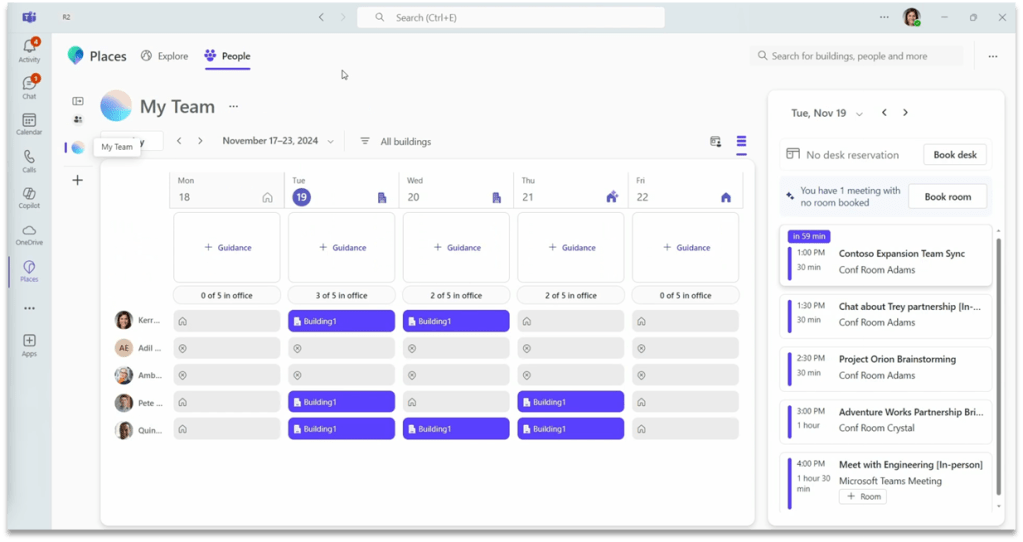
Places is now fully integrated with Teams and Outlook calendar.

•Recommended in-office day with Copilot.

•Managed booking with Copilot.

•Workplace presence.

•Places finder.

•Automatically reserve a desk on plug-in.

•Space analytics.

Other Microsoft Teams Announcements

•iPad Enhancements: multiple Teams windows.

•Threaded conversations.

•Automatic upgrade of meeting sensitivity based on single shared file sensitivity.

•New opt-in Calendar experience.

•New optimizations for VDI.

•Teams phone: the Queues app creates workspaces for automatically manage calls in Teams.

•Security enhancements: Preventing Bots from automatically join a meeting (by using captcha). Email verification for external users.

•Other Copilot enhancements: Copilot can now reason over up to 8 hours of meeting content.

SharePoint Online

SharePoint Agents

Every SharePoint site includes an agent scoped for the site’s content, ready to assist you instantly. These ready-made agents are an easy starting point to get answers without combing through the site or digging around with search—they can be used immediately without any customization.

For specific projects or tasks, any SharePoint user can create a customized agent based on the relevant files, folders, or sites, with just one click. 

Find all the agents that you work with, including those that others shared with you, from the Copilot icon in the top ribbon. 

Agents can easily be shared via email or within Teams chats. Not only are coworkers able to use the agent that you shared, but @mentioning the agent in a group chat setting gives the team a subject matter expert ready to assist and facilitate collaboration.  

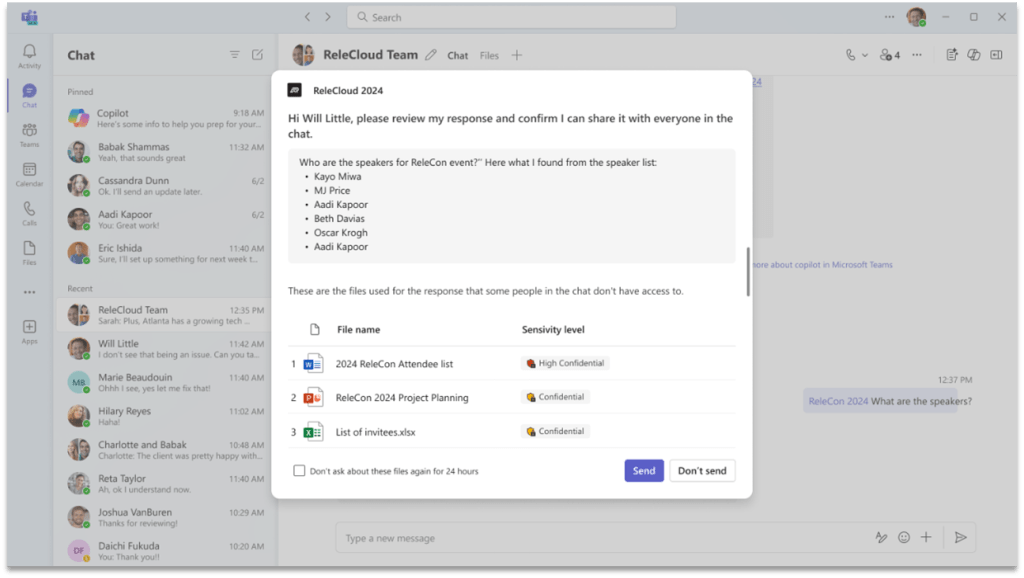
Agents in SharePoint adhere to existing SharePoint user permissions, they don’t broadly share the files you selected whenever you share the agent with others in your organization.

Agents created using SharePoint data are file-based. They are stored within the same site where they were created. Since they are files, you can manage them just like you manage other files. You can copy, move, delete, or archive them.  

Copilot

Copilot in Power Point (Available January 2025)

With a simple prompt and a file, Narrative Builder transforms your work into a compelling narrative. This gives you the flexibility to steer the story up front.

You will be able to include one Word documents and encrypted Word document, and Copilot will pull in information from the text in your document.

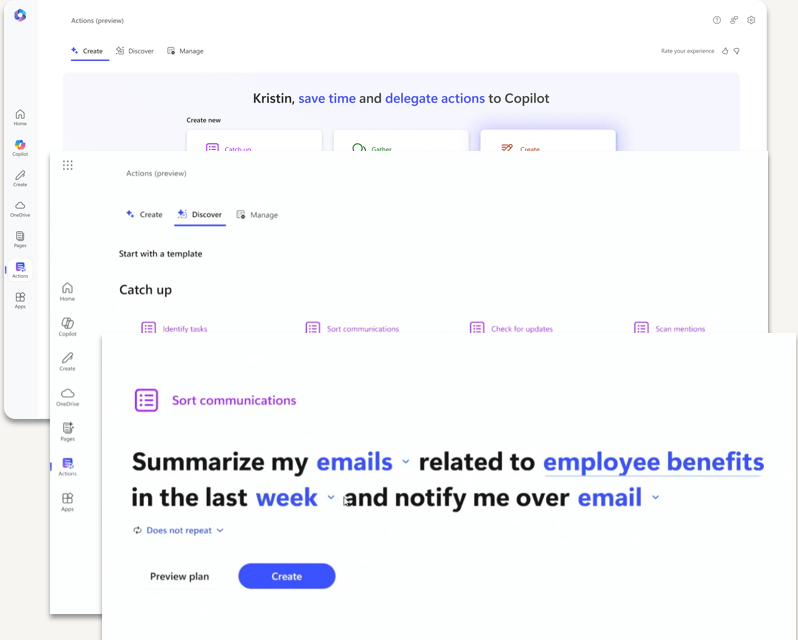
Copilot Actions (Private Preview)

With Copilot Actions, anyone can easily delegate tasks to Copilot.

These customizable prompt templates can be automated, used on demand or triggered by specific events to gather information and present it in specified formats, such as emails or Word documents.

Copilot Studio

Improved Extension Builder

As a user, you can create extensions conversationally and those extensions become immediately live to use or to be shared with others.

Improvements in answers quality

•Upgraded to GPT-4o and 4o-mini.

•Ability to reason over images and tables in files.

•Improved multi-language support.

•New knowledge curation experience: Customers can now directly control how their agents use their knowledge.

Autonomous Agents

Now they can be triggered by events, not just conversations.

Support for voice interactions

Copilot Studio now supports interactive voice response (IVR) capabilities, including speech and dual-tone multi-frequency (DTMF) input, context variables, call transfer, and speech and DTMF customization.

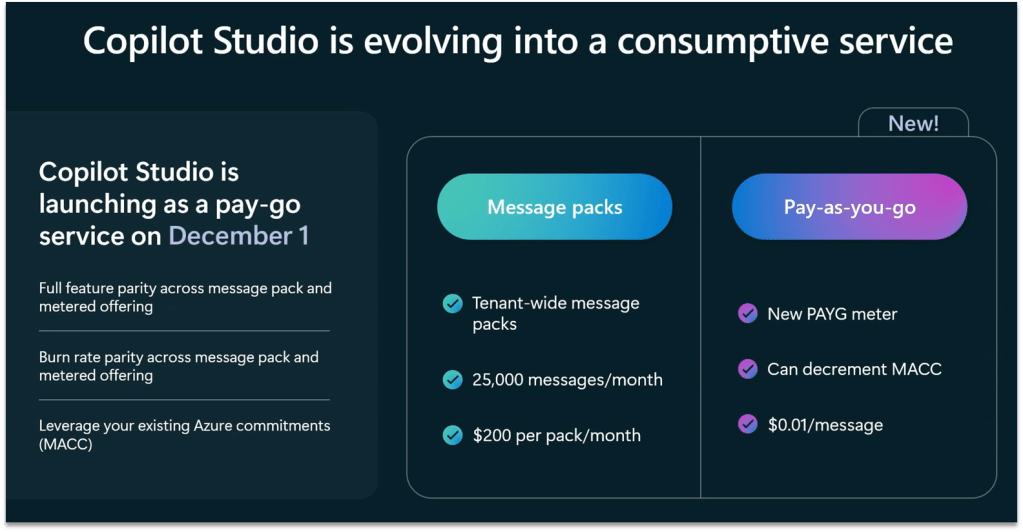
New PAYG service on December the 1st

Data Governance

Permission State Report

Identify overshared sites with Permission State Report.

Scalable actions:

-Site Access Review.

-Restricted Access Control.

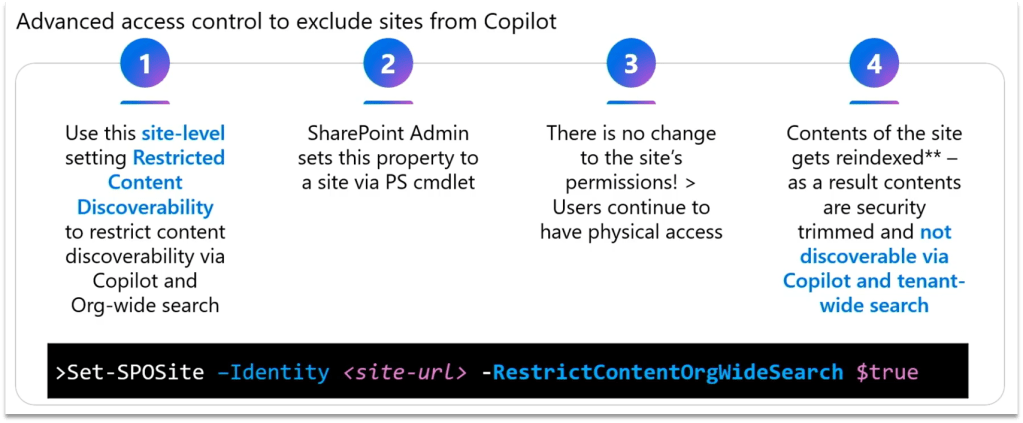
-Restrict Content Discovery.

Restricted Access Control

Available as part of SharePoint Advanced Management (SAM), Restricted Access Control policies allow you to restrict access to specific sites and content exclusively to designated user groups: this ensures that only authorized users can access sensitive information, even if individual files or folders have been overshared.  

Restricted Content Discovery

Restricted Content Discovery allows you to configure policies to restrict search and Copilot from reasoning over select data sites, leaving the site access unchanged but preventing the site’s content from being surfaced by Copilot or organization-wide search. 

Oversharing Assessment (Public Preview)

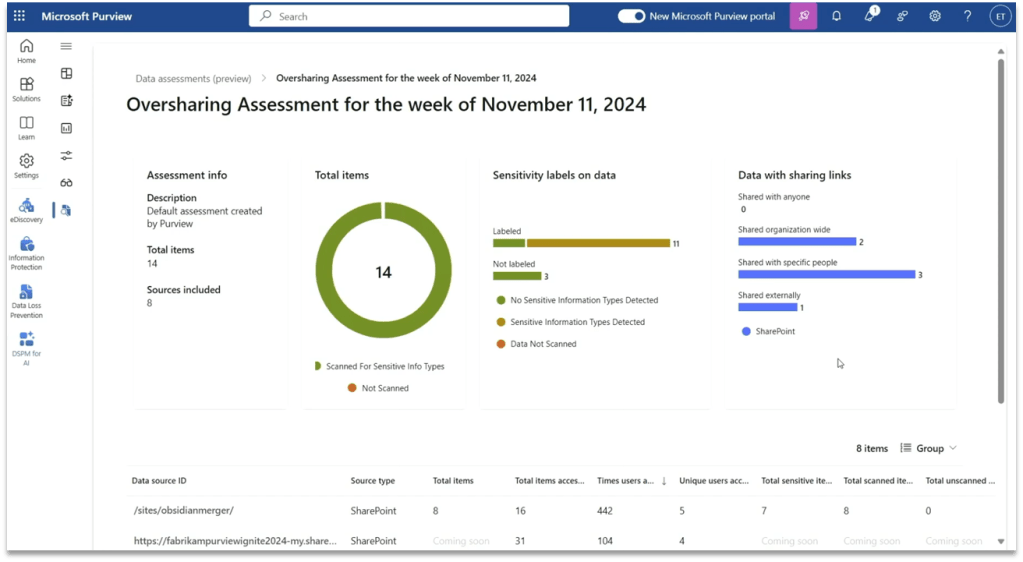
Available as part of Purview, this oversharing assessment provides recommendations on how to mitigate oversharing risks with a few clicks, such as applying a sensitivity label to overshared content, using SharePoint Access Management to add the site to restricted content discovery or start a new site access review. Admins can run the assessment before a Copilot deployment to identify and mitigate risks such as unlabeled files accessed by users. Post-deployment, the assessment will identify risks such as sensitive data referenced in Copilot responses.

DLP for Microsoft 365 Copilot

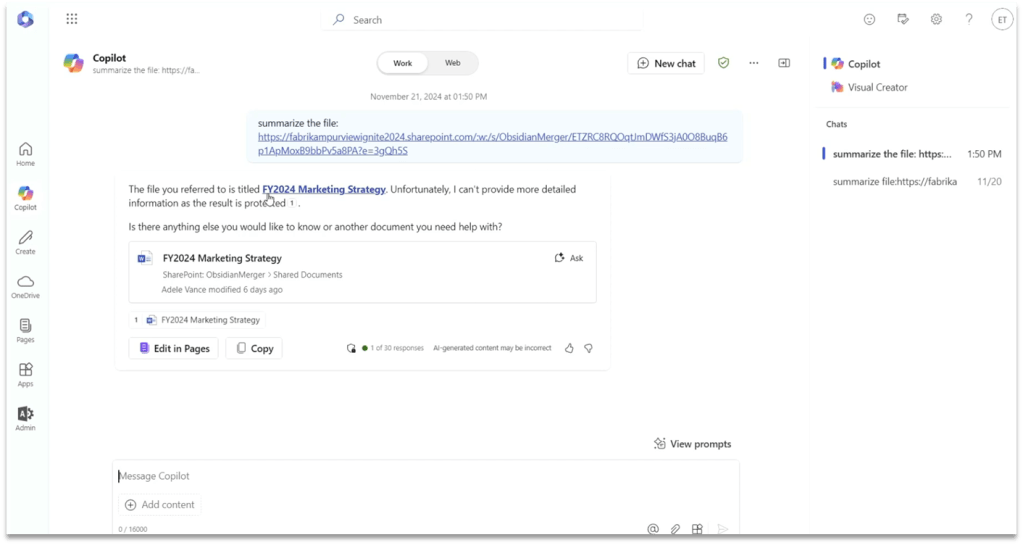
This new DLP aims at reducing the risk of AI-related oversharing at scale. This new capability prevents Microsoft 365 Business Chat from creating summaries or responses using a document’s contents. It works with Office files and PDFs stored in SharePoint or OneDrive and uses the file’s sensitivity label to prevent these actions. This helps ensure that potentially sensitive content within labeled documents is not processed by Copilot and responses are not available to copy and paste into other applications.  

Oversharing Blueprint

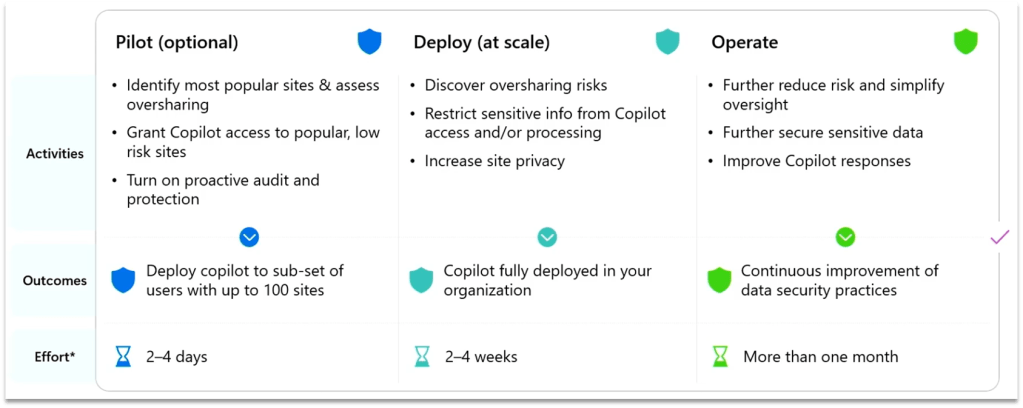
Available at https://aka.ms/Copilot/OversharingBlueprintLearn, this new blueprint by Microsoft provides a recommended path to address internal oversharing concerns during a Microsoft 365 Copilot deployment. The blueprint breaks the deployment journey into three phases: Pilot, Deployment, and Operation after initial deployment. The blueprint also includes the new SAM and Purview capabilities previously covered in this blog post.

Adoption & Measuring

Copilot Prompt Gallery

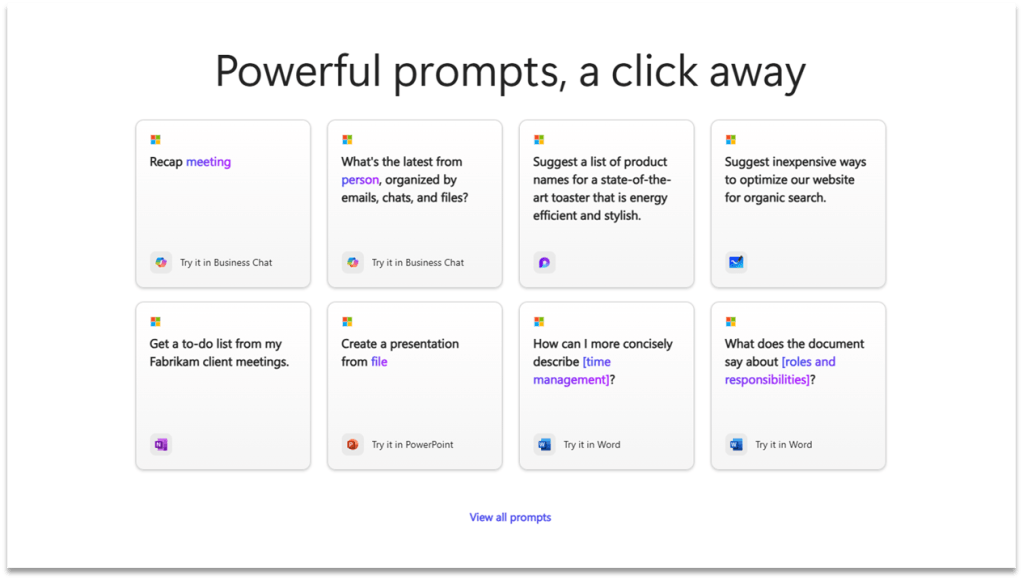
Provided as both a website (Copilot Prompt Gallery) and a feature in Copilot, Prompt Gallery is a comprehensive repository that provides users with access to a catalog of prompts. It includes prompts created by Microsoft that highlight key scenarios and capabilities of Copilot, designed to help users understand and use Copilot more effectively.

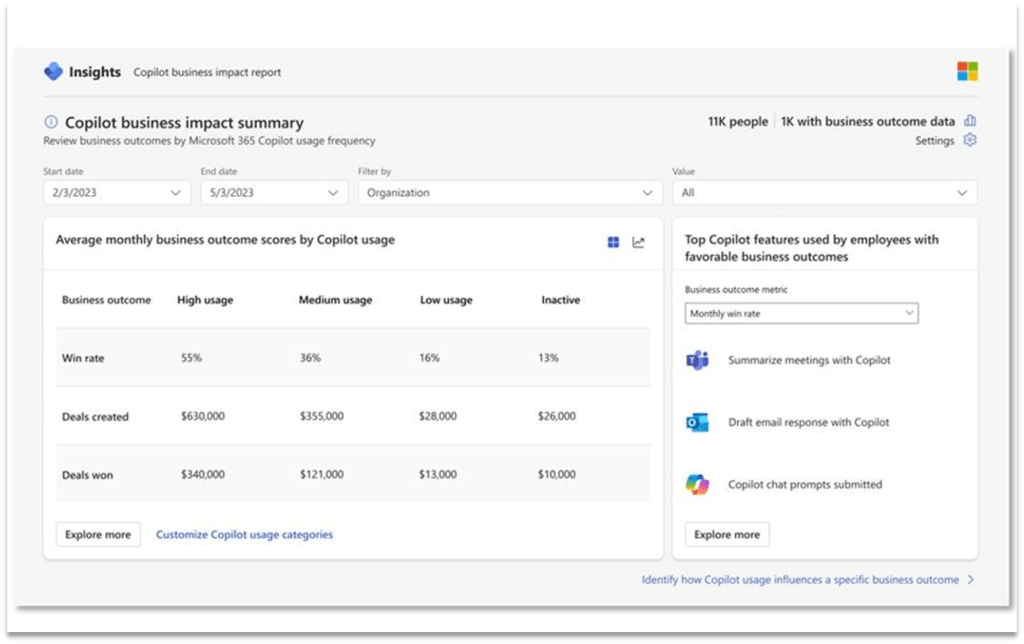
Copilot Analytics (GA early 2025)

•A component of the new Copilot Control System, designed for IT to confidently adopt and accelerate the business value of Copilot and agents.

•Can be accessed via Microsoft 365 admin center, the Copilot Dashboard and Viva Insights.

•Contains 2 components: Copilot Business impact Report, and Viva Insights dashboards.

Microsoft 365 Agents SDK

This new SDK provides interoperability with Copilot Studio in two ways:

•Developers can add functionality and extend an existing agent built using Copilot Studio using skills, allowing a maker to delegate work to other agent functionality.

•Secondly, a developer can connect to a Copilot Studio agent from code, providing the developers with all the functionality within the Copilot Studio ecosystem, including over 1000 connectors.

Build your own GenAI Dev Environment

If we want to develop GenAI applications, we first need a development environment. In this post I will explain step by step how I set up mine. This will certainly save you a lot of time, as you will not have to go through the same gruelling trail and error approach that I had to go through.

Summary

If you want to develop GenAI applications, then first of all you’ll need a development environment. In this post I will explain step by step how I set up mine. This will certainly save you a lot of time, as you won’t have to go through the same gruelling trail and error approach that I had to.

What you will need

An LLM will have to run on your computer, so ideally you should have a fairly modern PC, better if with an Nvidia RTX 4000 series GPU. These graphics cards are in fact equipped with an architecture for parallel computing (Nvidia CUDA) and therefore lend themselves very well to running LLMs. Let’s say you can do also without, however the performance will be low. It is also important to have enough RAM memory, ideally minimum 32GB.

The specs of the computer I used for my Dev Environment:

  • CPU: Intel i9-10850K @ 3600MHz
  • GPU: NVidia RTX 4070 Super
  • RAM: 64GB
  • Operating System: Linux Ubuntu 22.04 LTS

Some recommendations to avoid wasting your time:

  • As the operating system, it is best to use Linux. Some of the things we are going to use work badly in Windows or are not supported at all.
  • If you decide to use Ubuntu Linux (the recommended choice), then use the 22.04 LTS version. Do not install a newer version, you will end up with malfunctions and incompatibilities, especially with Docker and Nvidia drivers.
  • Do not install Linux on a virtual machine, some of the software to be installed will malfunction or fail. Better to have a dedicated disk partition and configure dual boot with Windows. If you really don’t want to bother with the separate partition, then you can try WSL (Windows Subsystem for Linux) – I haven’t tried it so I can’t say if it works.
  • To avoid conflicts and compatibility issues, do not install Docker Desktop, just stay with Docker Engine and its command line.

Software Selection

In my previous article, I described the conceptual architecture of GenAI applications. On a logical level, we must now start to figure out the available products and decide which ones to use for each of the main components of our architecture, which I remind you being the following:

  • LLM Server
  • Orchestrator
  • Vector Database
  • User Interface

There is a flood of products in development out there: locally installable, cloud deployable, cloud services, free, paid and fremium. To simplify things, then, I’ll refer only to products that meet these requirements:

  • Open source.
  • Deployable locally.
  • Linux Debian compatible.
  • Docker compatible.
  • Licensed Apache 2.0 or otherwise installable in Production environments without having to pay a licence fee for commercial use.

LLM Servers

LLM (Large Language Model) servers are specialized servers that host and serve large language models, enabling the execution of complex natural language processing tasks. In GenAI apps they facilitate the generation of human-like text, automating content creation, customer interactions, and other language-based processes. The LLM servers I’ve evaluated for my Dev environment were:

After installing and examining them all, I decided to move on with Ollama only, which was the only one to be fully compatible with my chosen orchestrator (I’m going to talk about it in the next section). Kudos to Jan though, I found it to be really fast, way faster than the other three. Special mention also to LMStudio which provides a wider range of functionality and also seems to be more user friendly than Ollama.

Orchestrators

Orchestrators in GenAI apps manage the coordination and integration of various AI models and services, ensuring seamless operation and communication between different components. They streamline workflows, handle data preprocessing and postprocessing, and optimize resource allocation to enhance the overall efficiency and effectiveness of AI-driven tasks. The orchestrators I’ve evaluated for my Dev environment were:

I shelved Rivet because it doesn’t seem to support any of the LLM servers I am focusing on. Excluded also Langchain, because it is not visual and using it right now would have unnecessarily complicated my learning curve, as there is Flowise which is in fact a visual interface to Langchain. Very interesting instead are Langflow and Dify, potentially even better than Flowise, however I decided not to install them, Langflow because it’s still in preview (and it’s not yet clear to me whether the final version will be open source or paid for), Dify was discarded because it is open source however for production apps it will require a commercial licence.
Going by exclusion then, and also bearing in mind the compatibility with at least one of the LLM servers I looked at, I eventually opted for Flowise.

Vector Databases

Vector databases are specialized data storage systems designed to efficiently handle high-dimensional vector data, which is crucial for storing and querying embeddings generated by AI models. In GenAI apps, they enable rapid similarity searches and nearest neighbor queries, facilitating tasks like recommendation systems, image retrieval, and natural language processing. The vector DBs I’ve evaluated for my Dev environment were:

As far as I could see, all three are good products. Milvus and Qdrant appear to be more scalable than Chroma, however I’d say that the scalability of a GenAI app is not a pressing issue at the moment. Instead, I can anticipate that there was no way to get Milvus to work with Flowise, although the connector exists in Flowise. I will discuss this in more detail in the second part of the article; for the time being, we can be happy just with installing Chroma.

User Interfaces

GenAI apps utilize various user interfaces, including text-based interfaces, voice-based assistants, and multimodal interfaces that integrate text, voice, and visual inputs. These interfaces enhance user interaction by allowing more natural and intuitive communication, catering to diverse user preferences and contexts. For my Dev environment, so far I’ve evaluated these user interfaces:

The configuration steps provided below will install only Open WebUI, you can still install AnythingLLM separately though, to play around with LLM models, as it can also work standalone.

Installation Steps

Following the steps below you will get a fully configured Dev environment, running locally, with the following products installed:

  • Ollama
  • Open WebUI
  • Chroma
  • Flowise

IMPORTANT: The commands and configuration files below assume your host operating system is Ubuntu Linux 22.04. Some changes or tweaks may be necessary if you’re running on Windows, or on another version of Linux, or on Mac OS.

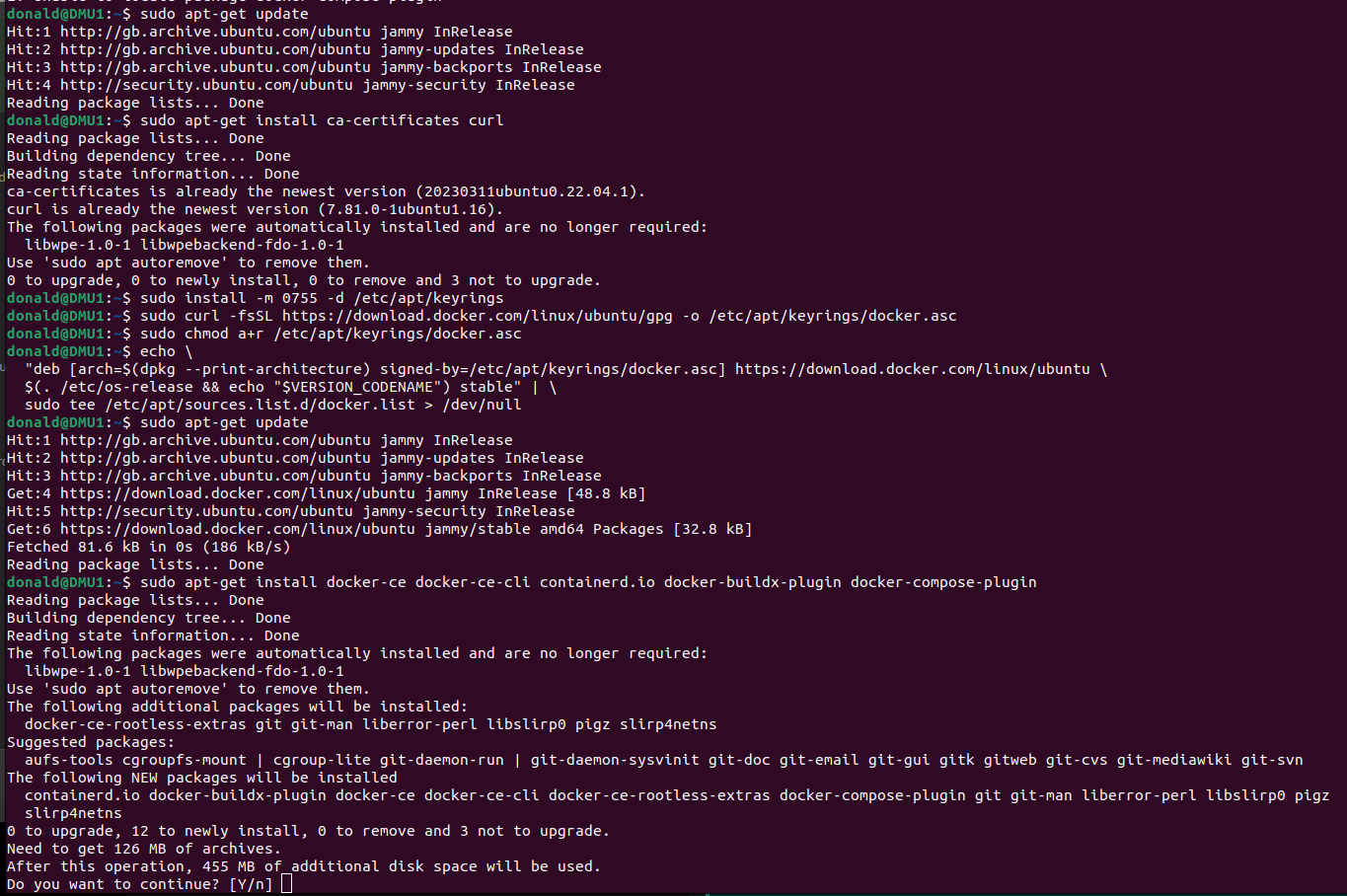
Installing Docker

Make sure the Docker Engine is installed:

Next, install the Nvidia Container Toolkit:

To simplify the execution of Docker commands from now on, you can run it rootless:

Configuration files

Create a folder on your Home directory, then save the code below as “compose.yaml”, this is going to be your Docker Compose configuration:

version: '3.9'

services:
  ################################################
  # Ollama
  openWebUI:
    container_name: ollama-openwebui
    image: ghcr.io/open-webui/open-webui:main
    restart: always
    ports:
      - "3000:8080"
    extra_hosts:
      - "host.docker.internal:host-gateway"
    volumes:
      - ollama-openwebui-local:/app/backend/data
    networks:
      - ai-dev-environment-network

  ollama:
    container_name: ollama
    image: ollama/ollama:latest
    restart: always
    ports:
      - "11434:11434"
    volumes:
      - ollama-local:/root/.ollama
    networks:
      - ai-dev-environment-network

  ################################################
  # Chroma
  postgres:
    container_name: postgres
    image: postgres:14-alpine
    restart: always
    ports:
      - 5432:5432
    volumes:
      - ~/apps/postgres:/var/lib/postgresql/data
    environment:
      POSTGRES_USER: vectoradmin
      POSTGRES_PASSWORD: password
      POSTGRES_DB: vdbms
    networks:
      - ai-dev-environment-network

  chroma:
    container_name: chroma
    image: chromadb/chroma
    restart: always
    command: "--workers 1 --host 0.0.0.0 --port 8000 --proxy-headers --log-config chromadb/log_config.yml --timeout-keep-alive 30"
    environment:
      - IS_PERSISTENT=TRUE
      - CHROMA_SERVER_AUTHN_PROVIDER=${CHROMA_SERVER_AUTHN_PROVIDER}
      - CHROMA_SERVER_AUTHN_CREDENTIALS_FILE=${CHROMA_SERVER_AUTHN_CREDENTIALS_FILE}
      - CHROMA_SERVER_AUTHN_CREDENTIALS=${CHROMA_SERVER_AUTHN_CREDENTIALS}
      - CHROMA_AUTH_TOKEN_TRANSPORT_HEADER=${CHROMA_AUTH_TOKEN_TRANSPORT_HEADER}
      - PERSIST_DIRECTORY=${PERSIST_DIRECTORY:-/chroma/chroma}
      - CHROMA_OTEL_EXPORTER_ENDPOINT=${CHROMA_OTEL_EXPORTER_ENDPOINT}
      - CHROMA_OTEL_EXPORTER_HEADERS=${CHROMA_OTEL_EXPORTER_HEADERS}
      - CHROMA_OTEL_SERVICE_NAME=${CHROMA_OTEL_SERVICE_NAME}
      - CHROMA_OTEL_GRANULARITY=${CHROMA_OTEL_GRANULARITY}
      - CHROMA_SERVER_NOFILE=${CHROMA_SERVER_NOFILE}    
    volumes:      
      - chroma-data-local:/chroma/chroma
    ports:
      - 8000:8000
    healthcheck:
      # Adjust below to match your container port
      test: [ "CMD", "curl", "-f", "http://localhost:8000/api/v1/heartbeat" ]
      interval: 30s
      timeout: 10s
      retries: 3
    networks:
      - ai-dev-environment-network

  vector-admin:
    container_name: vector-admin
    image: mintplexlabs/vectoradmin:latest
    restart: always    
    volumes:
      - "./.env:/app/backend/.env"
      - "../backend/storage:/app/backend/storage"
      - "../document-processor/hotdir/:/app/document-processor/hotdir"
    ports:
      - "3001:3001"
      - "3355:3355"
      - "8288:8288"
    env_file:
      - .env
    networks:
      - ai-dev-environment-network
    depends_on:
      - postgres

  ################################################
  # Flowise
  flowise:
    container_name: flowise
    image: flowiseai/flowise
    restart: always
    environment:
        - PORT=${PORT}
        - CORS_ORIGINS=${CORS_ORIGINS}
        - IFRAME_ORIGINS=${IFRAME_ORIGINS}
        - FLOWISE_USERNAME=${FLOWISE_USERNAME}
        - FLOWISE_PASSWORD=${FLOWISE_PASSWORD}
        - FLOWISE_FILE_SIZE_LIMIT=${FLOWISE_FILE_SIZE_LIMIT}
        - DEBUG=${DEBUG}
        - DATABASE_PATH=${DATABASE_PATH}
        - DATABASE_TYPE=${DATABASE_TYPE}
        - DATABASE_PORT=${DATABASE_PORT}
        - DATABASE_HOST=${DATABASE_HOST}
        - DATABASE_NAME=${DATABASE_NAME}
        - DATABASE_USER=${DATABASE_USER}
        - DATABASE_PASSWORD=${DATABASE_PASSWORD}
        - DATABASE_SSL=${DATABASE_SSL}
        - DATABASE_SSL_KEY_BASE64=${DATABASE_SSL_KEY_BASE64}
        - APIKEY_PATH=${APIKEY_PATH}
        - SECRETKEY_PATH=${SECRETKEY_PATH}
        - FLOWISE_SECRETKEY_OVERWRITE=${FLOWISE_SECRETKEY_OVERWRITE}
        - LOG_LEVEL=${LOG_LEVEL}
        - LOG_PATH=${LOG_PATH}
        - BLOB_STORAGE_PATH=${BLOB_STORAGE_PATH}
        - DISABLE_FLOWISE_TELEMETRY=${DISABLE_FLOWISE_TELEMETRY}
        - MODEL_LIST_CONFIG_JSON=${MODEL_LIST_CONFIG_JSON}
    ports:
        - '${PORT}:${PORT}'
    volumes:
        - ~/.flowise:/root/.flowise
    command: /bin/sh -c "sleep 3; flowise start"
    networks:
      - ai-dev-environment-network

volumes:
  ollama-openwebui-local:
    external: true
  ollama-local:
    external: true
  chroma-data-local:
    driver: local

networks:
  ai-dev-environment-network:
    driver: bridge

Then in the same folder, create a second file called “.env”, and copy and paste the text below. This is going to be your environment variables file:

################################################################
# FLOWISE
################################################################
PORT=3003
DATABASE_PATH=/root/.flowise
APIKEY_PATH=/root/.flowise
SECRETKEY_PATH=/root/.flowise
LOG_PATH=/root/.flowise/logs
BLOB_STORAGE_PATH=/root/.flowise/storage

################################################################
# VECTOR ADMIN
################################################################
SERVER_PORT=3001
JWT_SECRET="your-random-string-here"
INNGEST_EVENT_KEY="background_workers"
INNGEST_SIGNING_KEY="random-string-goes-here"
INNGEST_LANDING_PAGE="true"
DATABASE_CONNECTION_STRING="postgresql://vectoradmin:password@postgres:5432/vdbms"

Taking as example my project folder, “Projects/AI-Dev-Environment”, you should now have something like this:

Open the terminal, move into your folder, then run the command:

docker compose up -d

That’s it. Docker will download the images from internet, then will configure the containers based on the provided configuration file. When done, you should be able to open, from the web browser:

Connecting to Ollama and Chroma

Before we can start playing around, there are still a few configuration steps to do in order to connect to Ollama and Chroma, as they don’t have an out-of.-the-box UI:

Connect to Open WebUI opening a browser window and typing http://localhost:3000

Sign up and create an account (it’s all stored locally). After login, you will see the home page:

Go to Settings (top-right corner, then “Settings”), select the tab “Connections” and fill up the information as per below:

Click “Save”, then select the next tab, “Models”:

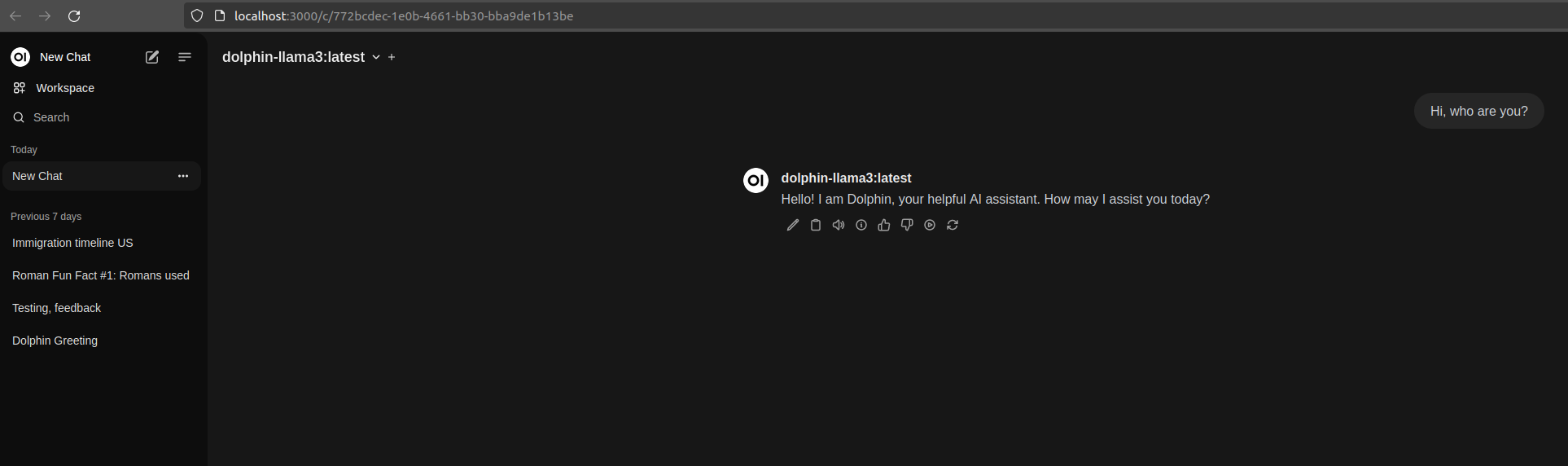
In “Pull a model from Ollama.com”, enter a model tag name, then click the button next to the text field, to download it. To find a supported model name, go to https://ollama.com/library and choose one. I’m currently using “dolphin-llama3” (https://ollama.com/library/dolphin-llama3), an uncensored model. Note the “B” near the model names… 3B, 8B, 70B, those are the model’s “billions of parameters”. Do not load a model having too many parameters, unless you have minimum 128GB of RAM. I’d suggest not more than 8B.

That’s all for Ollama. Go back to the home page, make sure your model is selected from the drop down “Select a model” on the top-left corner, and you can start chatting:

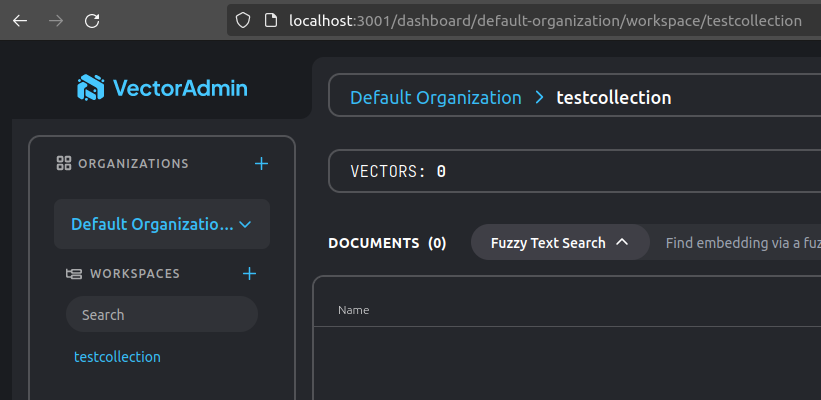
Now open Vector Admin at http://localhost:3001 . Connect to Chroma using the information displayed here below:

Click “Connect to Vector Database”. Create a new workspace in Vector Admin (mine below is called “testcollection”):

You can now verify that the collection actually exists in Chroma, calling Chroma’s API endpoint directly from the browser:

Recap

We got to the end of Part 1, and if you have executed all steps correctly you should now have your new shining Dev environment for creating Generative AI apps locally on your computer!