A recap of #MSIgnite news for Modern Work

This article is a summary of all the news and previews about Modern Work presented by Microsoft at the Ignite 2024 event.
Introduction

This article is a summary of all the news and previews about Modern Work presented by Microsoft at the Ignite 2024 event.

Microsoft Teams

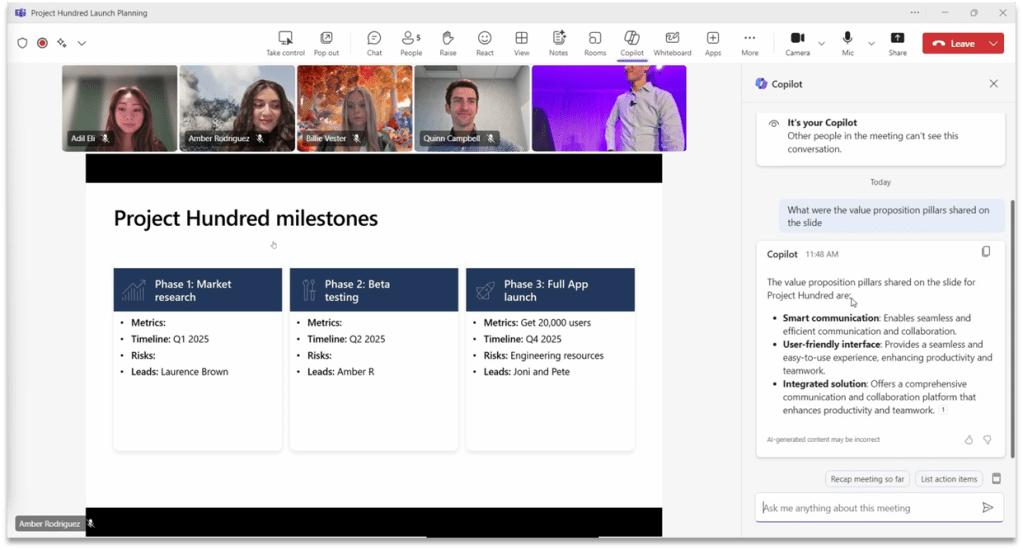
Analyse Screen-Shared Content (Public Preview Q1 2025)

Copilot’s ability to reason over any content shared on screen will help ensure that no meeting details are overlooked.

Users will be able to ask Copilot to summarize screenshared content, (i.e., “Which products had the highest sales?”), consolidate insights across both the conversation and presentation (i.e., “What was the feedback per slide?”) and draft new content based on the entire meeting (i.e., “Rewrite the spreadsheet as a table with only the rows that are On Track”).
Interpreter Agent (Public Preview Q1 2025)

The Interpreter agent in Teams provides real-time speech-to-speech interpretation during meetings, and you can opt to have it simulate your speaking voice for a more personal and engaging experience.

Project Manager Agent (Public Preview)

With this new feature, users can create Project Manager plans in Planner in Microsoft Teams, with  features that are not available in traditional plans:

•Assign tasks to Project Manager.

•Complete tasks and generate outputs for teams to collaborate on.

•A Whiteboard tab will be available in Planner so users can create whiteboards directly in the plan, and users can convert sticky notes into tasks within the plans.

Other OOB Agents

Facilitator Agent (Public Preview)

Takes real-time notes during Teams meetings, allowing everyone to co-author and collaborate seamlessly.

Shares an UpToDate summary of important information in Teams chats as the conversation happens, including key decisions, actions items, and open questions to resolve.

Employee Self-Service Agent (expected Q2 2025)

Expedites answers to common workplace-related questions and takes action on key HR and IT tasks.

Customizable in Copilot Studio with OOB tools/resources to connect to knowledge bases & HR/IT systems.

Storyline (Private Preview)

Storyline in Microsoft Teams will simplify the ways that leaders and employees share and connect with colleagues across the company, increasing visibility and engagement. Employee communications are often scattered across multiple places, leading to frustration, delays and overload.

(Unconfirmed) Integration of communities is coming in 2025, enabling you to connect, communicate and collaborate from 1:1 to group chats to channels to org-wide communities, all in one place.

Microsoft Places

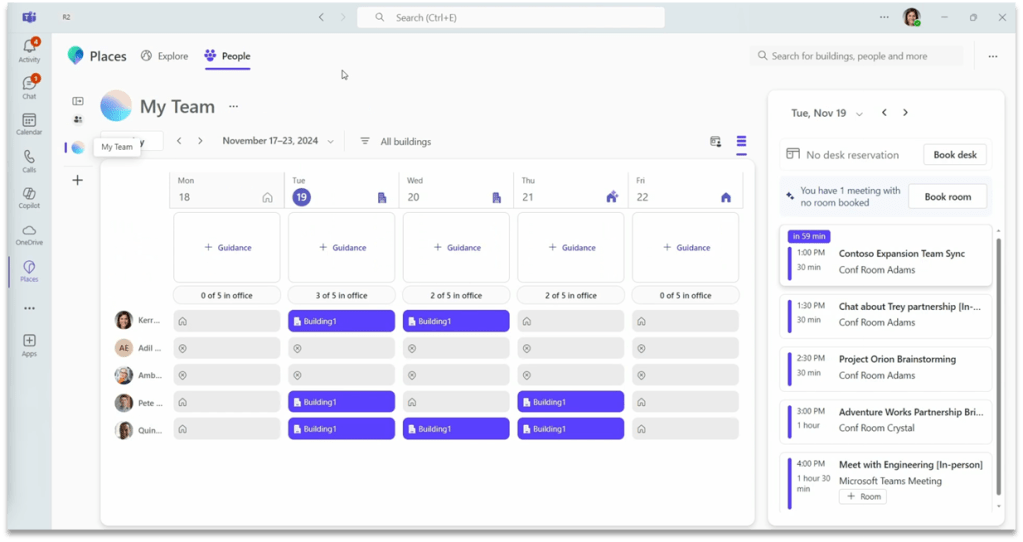
Places is now fully integrated with Teams and Outlook calendar.

•Recommended in-office day with Copilot.

•Managed booking with Copilot.

•Workplace presence.

•Places finder.

•Automatically reserve a desk on plug-in.

•Space analytics.
Other Microsoft Teams Announcements

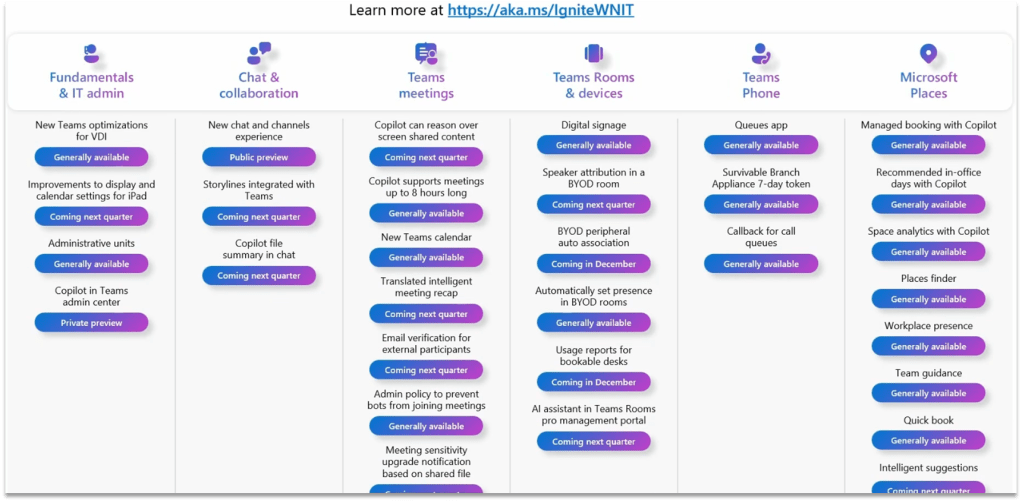
•iPad Enhancements: multiple Teams windows.

•Threaded conversations.

•Automatic upgrade of meeting sensitivity based on single shared file sensitivity.

•New opt-in Calendar experience.

•New optimizations for VDI.

•Teams phone: the Queues app creates workspaces for automatically manage calls in Teams.

•Security enhancements: Preventing Bots from automatically join a meeting (by using captcha). Email verification for external users.

•Other Copilot enhancements: Copilot can now reason over up to 8 hours of meeting content.
SharePoint Online

SharePoint Agents

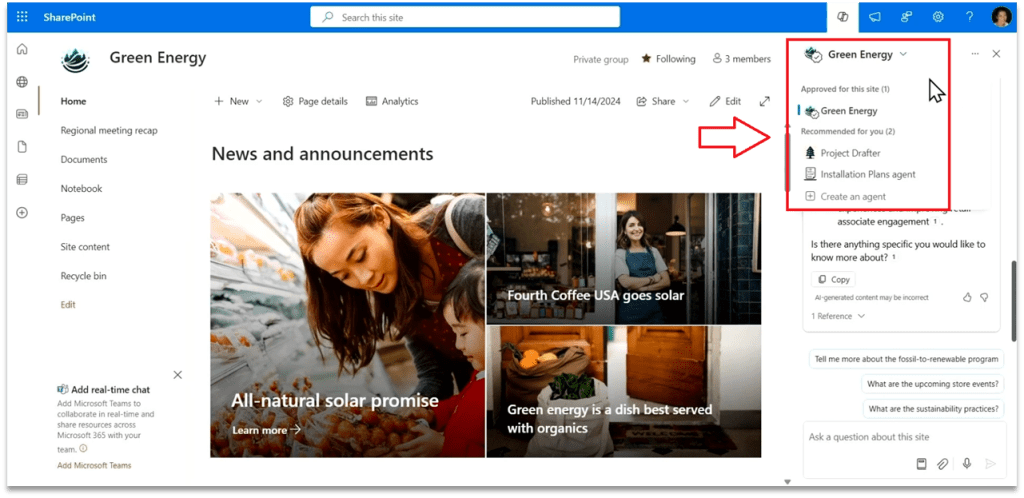
Every SharePoint site includes an agent scoped for the site’s content, ready to assist you instantly. These ready-made agents are an easy starting point to get answers without combing through the site or digging around with search—they can be used immediately without any customization.

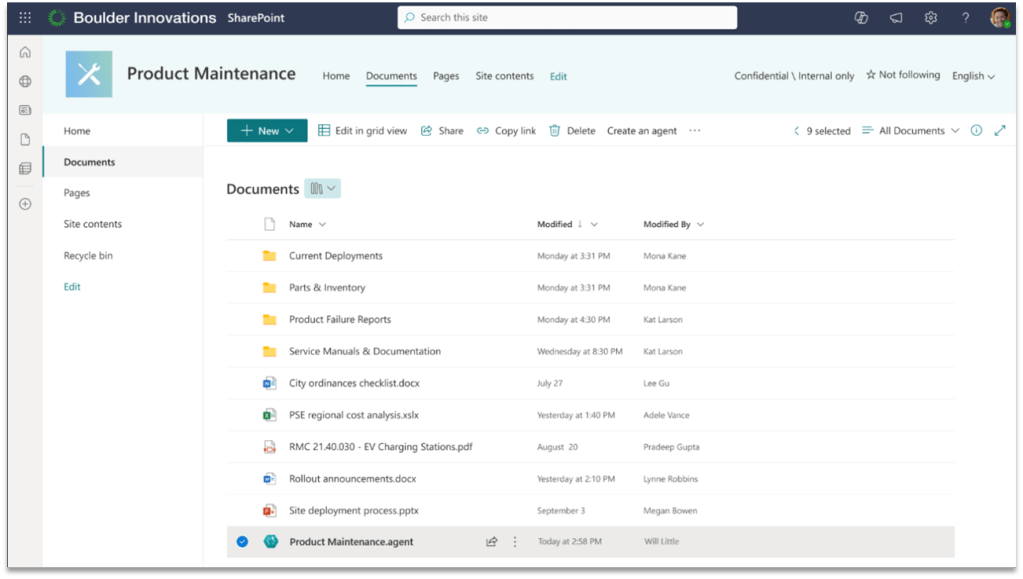
For specific projects or tasks, any SharePoint user can create a customized agent based on the relevant files, folders, or sites, with just one click. 

Find all the agents that you work with, including those that others shared with you, from the Copilot icon in the top ribbon. 
Agents can easily be shared via email or within Teams chats. Not only are coworkers able to use the agent that you shared, but @mentioning the agent in a group chat setting gives the team a subject matter expert ready to assist and facilitate collaboration.  

Agents in SharePoint adhere to existing SharePoint user permissions, they don’t broadly share the files you selected whenever you share the agent with others in your organization.
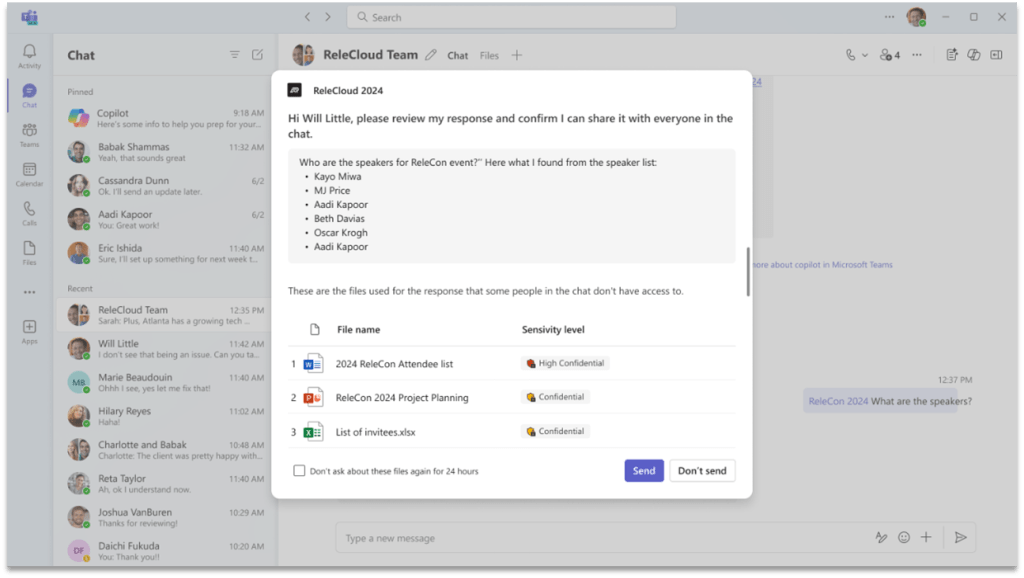
Agents created using SharePoint data are file-based. They are stored within the same site where they were created. Since they are files, you can manage them just like you manage other files. You can copy, move, delete, or archive them.  
Copilot

Copilot in Power Point (Available January 2025)

With a simple prompt and a file, Narrative Builder transforms your work into a compelling narrative. This gives you the flexibility to steer the story up front.

You will be able to include one Word documents and encrypted Word document, and Copilot will pull in information from the text in your document.

Copilot Actions (Private Preview)

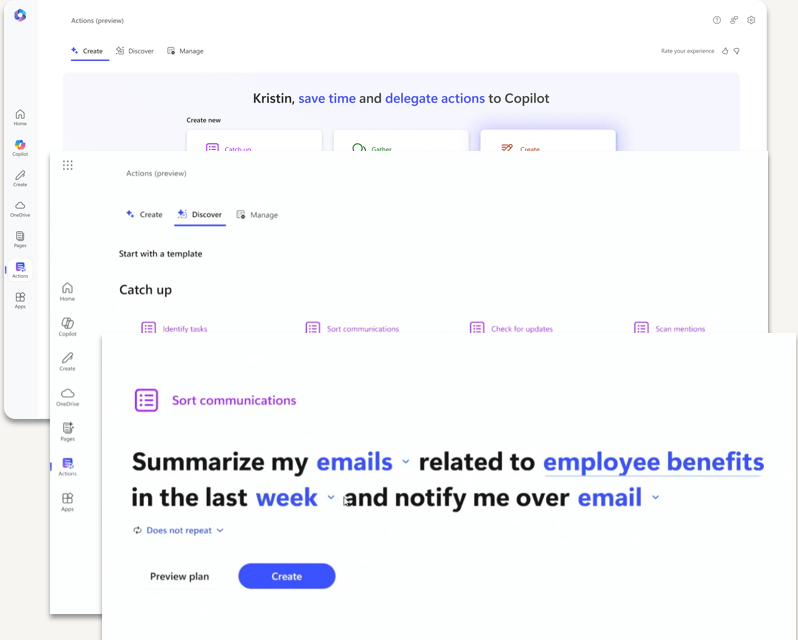
With Copilot Actions, anyone can easily delegate tasks to Copilot.

These customizable prompt templates can be automated, used on demand or triggered by specific events to gather information and present it in specified formats, such as emails or Word documents.
Copilot Studio

Improved Extension Builder

As a user, you can create extensions conversationally and those extensions become immediately live to use or to be shared with others.

Improvements in answers quality

•Upgraded to GPT-4o and 4o-mini.

•Ability to reason over images and tables in files.

•Improved multi-language support.

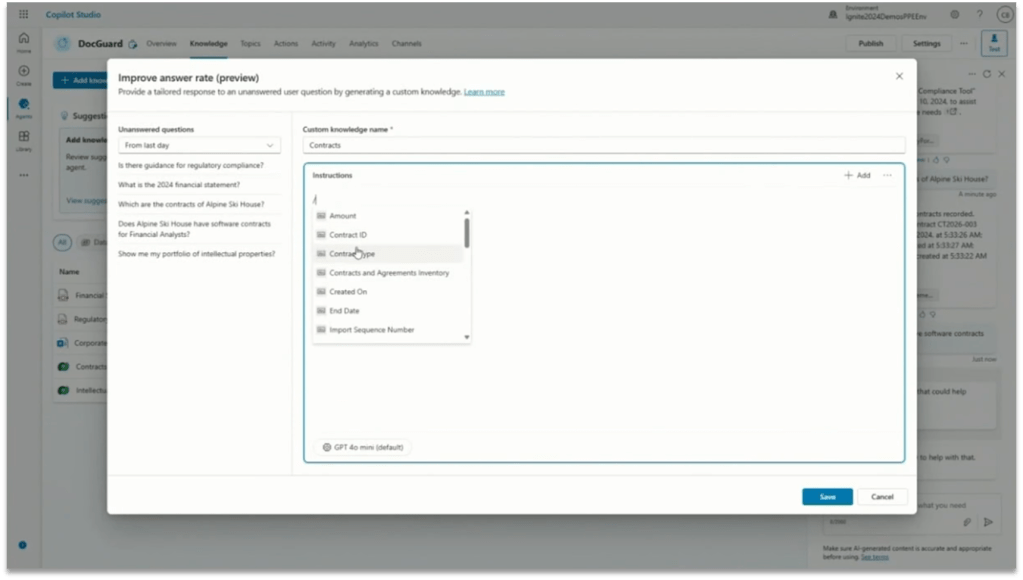
•New knowledge curation experience: Customers can now directly control how their agents use their knowledge.
Autonomous Agents

Now they can be triggered by events, not just conversations.

Support for voice interactions

Copilot Studio now supports interactive voice response (IVR) capabilities, including speech and dual-tone multi-frequency (DTMF) input, context variables, call transfer, and speech and DTMF customization.

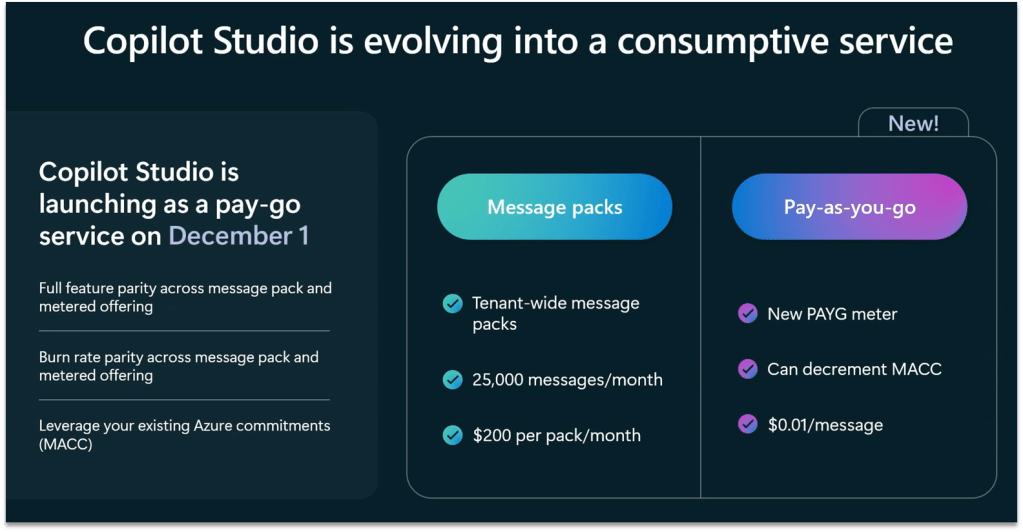
New PAYG service on December the 1st
Data Governance

Permission State Report

Identify overshared sites with Permission State Report.

Scalable actions:

-Site Access Review.

-Restricted Access Control.

-Restrict Content Discovery.

Restricted Access Control

Available as part of SharePoint Advanced Management (SAM), Restricted Access Control policies allow you to restrict access to specific sites and content exclusively to designated user groups: this ensures that only authorized users can access sensitive information, even if individual files or folders have been overshared.  

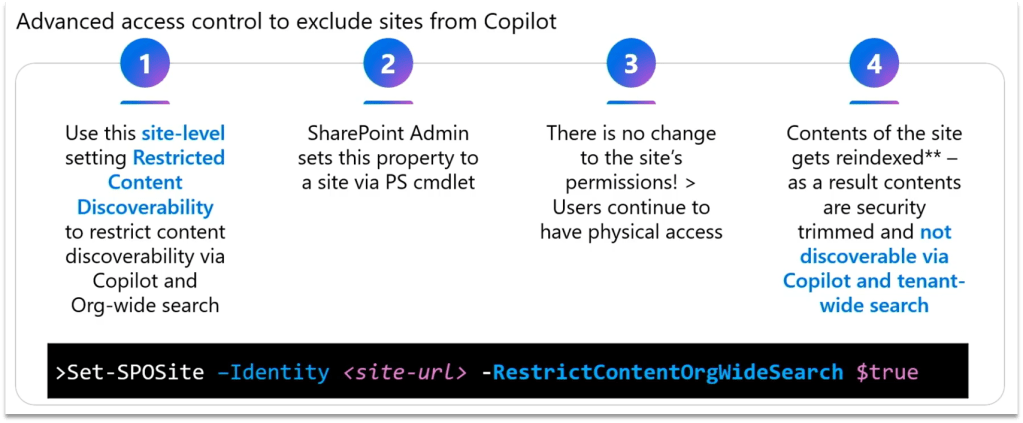
Restricted Content Discovery

Restricted Content Discovery allows you to configure policies to restrict search and Copilot from reasoning over select data sites, leaving the site access unchanged but preventing the site’s content from being surfaced by Copilot or organization-wide search. 
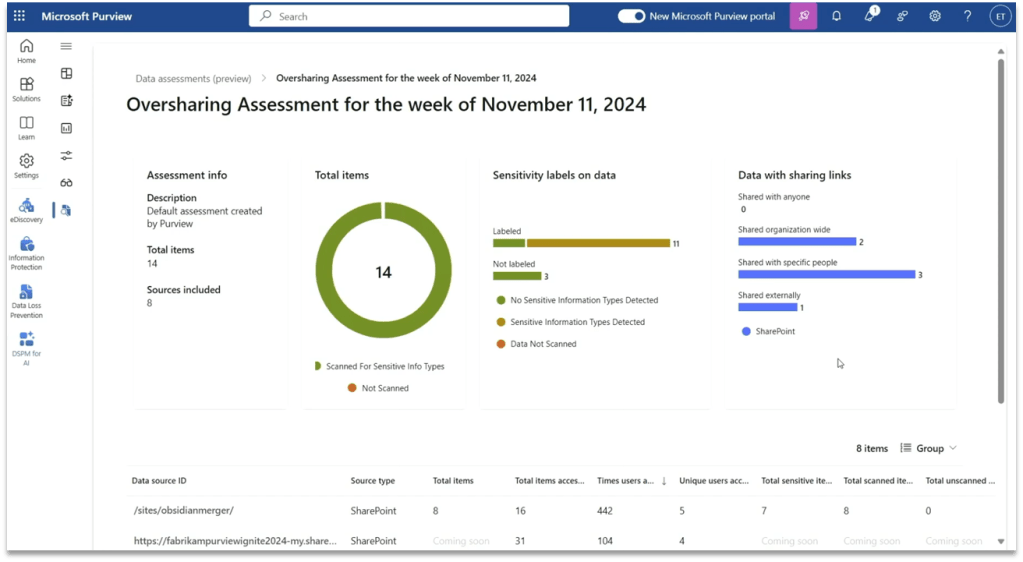
Oversharing Assessment (Public Preview)

Available as part of Purview, this oversharing assessment provides recommendations on how to mitigate oversharing risks with a few clicks, such as applying a sensitivity label to overshared content, using SharePoint Access Management to add the site to restricted content discovery or start a new site access review. Admins can run the assessment before a Copilot deployment to identify and mitigate risks such as unlabeled files accessed by users. Post-deployment, the assessment will identify risks such as sensitive data referenced in Copilot responses.
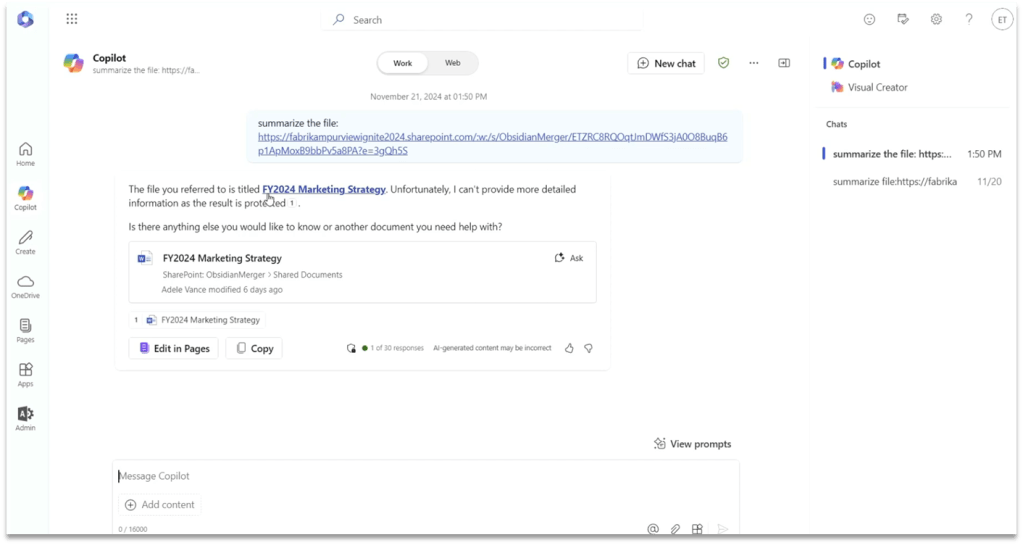
DLP for Microsoft 365 Copilot

This new DLP aims at reducing the risk of AI-related oversharing at scale. This new capability prevents Microsoft 365 Business Chat from creating summaries or responses using a document’s contents. It works with Office files and PDFs stored in SharePoint or OneDrive and uses the file’s sensitivity label to prevent these actions. This helps ensure that potentially sensitive content within labeled documents is not processed by Copilot and responses are not available to copy and paste into other applications.  
Oversharing Blueprint

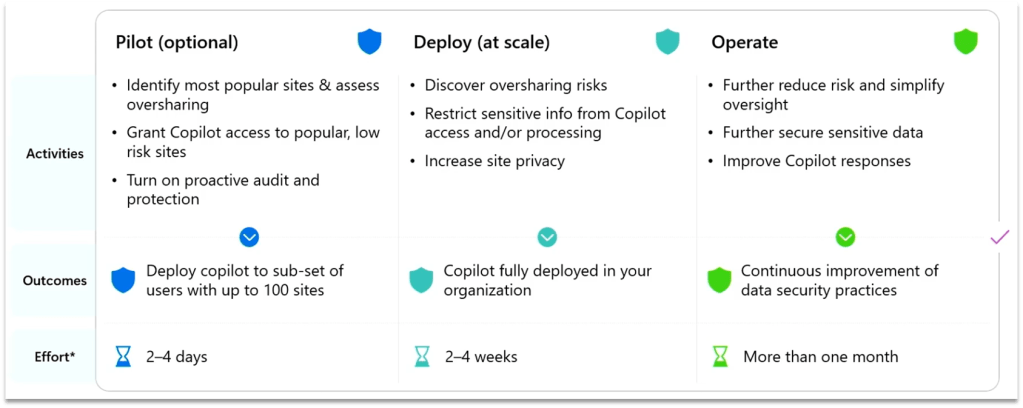
Available at https://aka.ms/Copilot/OversharingBlueprintLearn, this new blueprint by Microsoft provides a recommended path to address internal oversharing concerns during a Microsoft 365 Copilot deployment. The blueprint breaks the deployment journey into three phases: Pilot, Deployment, and Operation after initial deployment. The blueprint also includes the new SAM and Purview capabilities previously covered in this blog post.
Adoption & Measuring

Copilot Prompt Gallery

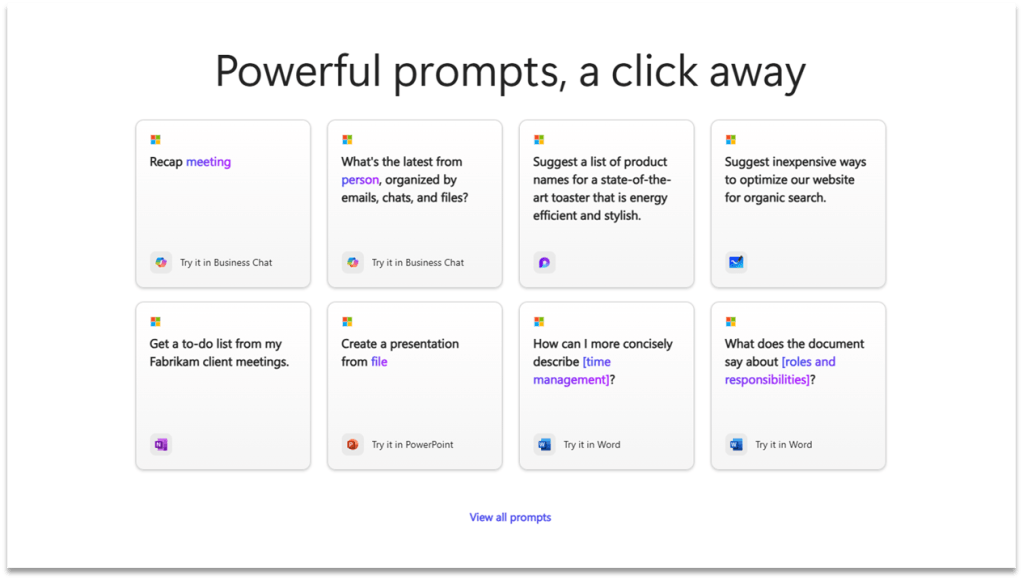
Provided as both a website (Copilot Prompt Gallery) and a feature in Copilot, Prompt Gallery is a comprehensive repository that provides users with access to a catalog of prompts. It includes prompts created by Microsoft that highlight key scenarios and capabilities of Copilot, designed to help users understand and use Copilot more effectively.
Copilot Analytics (GA early 2025)

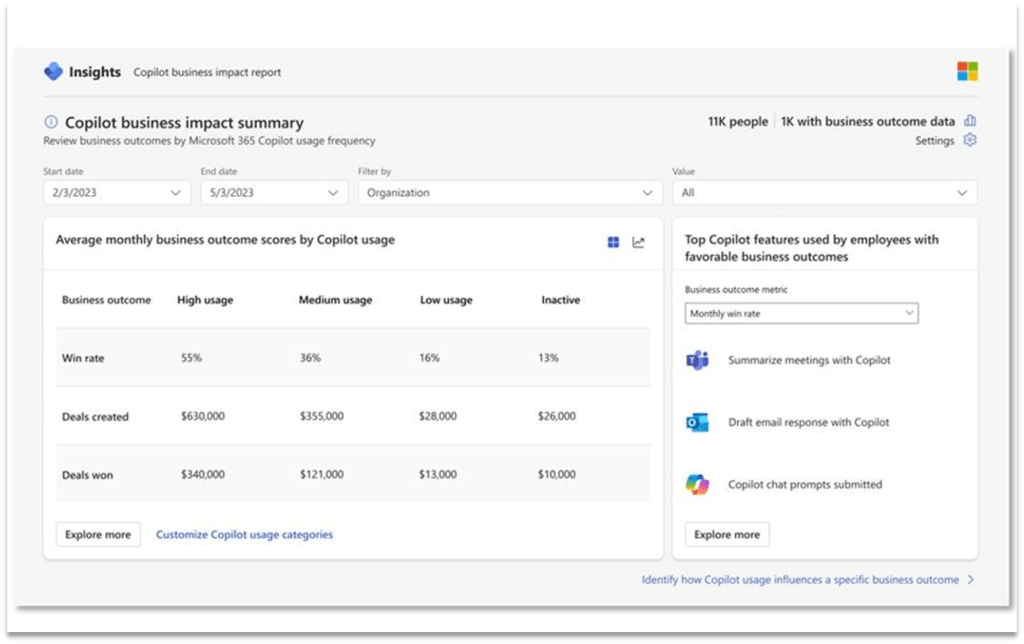
•A component of the new Copilot Control System, designed for IT to confidently adopt and accelerate the business value of Copilot and agents.

•Can be accessed via Microsoft 365 admin center, the Copilot Dashboard and Viva Insights.

•Contains 2 components: Copilot Business impact Report, and Viva Insights dashboards.
Microsoft 365 Agents SDK

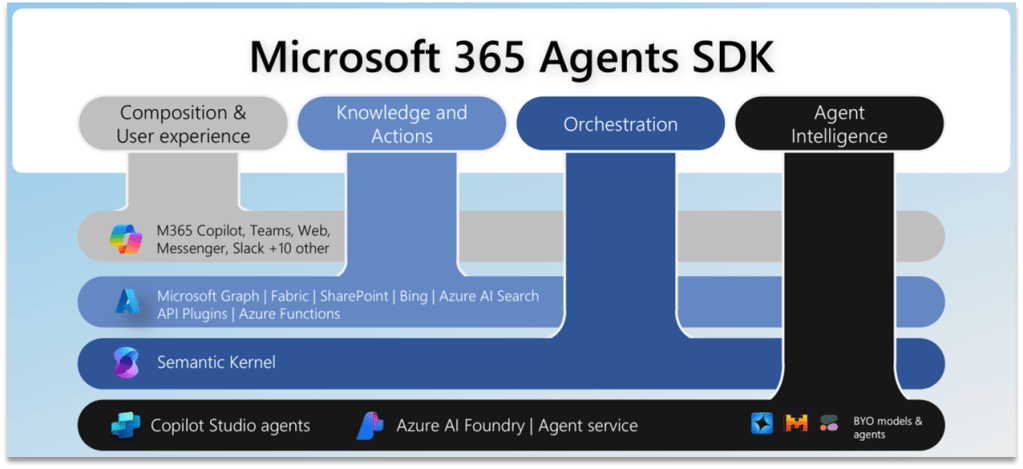
This new SDK provides interoperability with Copilot Studio in two ways:

•Developers can add functionality and extend an existing agent built using Copilot Studio using skills, allowing a maker to delegate work to other agent functionality.

•Secondly, a developer can connect to a Copilot Studio agent from code, providing the developers with all the functionality within the Copilot Studio ecosystem, including over 1000 connectors.
Build your own GenAI Dev Environment

If we want to develop GenAI applications, we first need a development environment. In this post I will explain step by step how I set up mine. This will certainly save you a lot of time, as you will not have to go through the same gruelling trail and error approach that I had to go through.

Summary

If you want to develop GenAI applications, then first of all you’ll need a development environment. In this post I will explain step by step how I set up mine. This will certainly save you a lot of time, as you won’t have to go through the same gruelling trail and error approach that I had to.

What you will need

An LLM will have to run on your computer, so ideally you should have a fairly modern PC, better if with an Nvidia RTX 4000 series GPU. These graphics cards are in fact equipped with an architecture for parallel computing (Nvidia CUDA) and therefore lend themselves very well to running LLMs. Let’s say you can do also without, however the performance will be low. It is also important to have enough RAM memory, ideally minimum 32GB.

The specs of the computer I used for my Dev Environment:

  • CPU: Intel i9-10850K @ 3600MHz
  • GPU: NVidia RTX 4070 Super
  • RAM: 64GB
  • Operating System: Linux Ubuntu 22.04 LTS

Some recommendations to avoid wasting your time:

  • As the operating system, it is best to use Linux. Some of the things we are going to use work badly in Windows or are not supported at all.
  • If you decide to use Ubuntu Linux (the recommended choice), then use the 22.04 LTS version. Do not install a newer version, you will end up with malfunctions and incompatibilities, especially with Docker and Nvidia drivers.
  • Do not install Linux on a virtual machine, some of the software to be installed will malfunction or fail. Better to have a dedicated disk partition and configure dual boot with Windows. If you really don’t want to bother with the separate partition, then you can try WSL (Windows Subsystem for Linux) – I haven’t tried it so I can’t say if it works.
  • To avoid conflicts and compatibility issues, do not install Docker Desktop, just stay with Docker Engine and its command line.

Software Selection

In my previous article, I described the conceptual architecture of GenAI applications. On a logical level, we must now start to figure out the available products and decide which ones to use for each of the main components of our architecture, which I remind you being the following:

  • LLM Server
  • Orchestrator
  • Vector Database
  • User Interface

There is a flood of products in development out there: locally installable, cloud deployable, cloud services, free, paid and fremium. To simplify things, then, I’ll refer only to products that meet these requirements:

  • Open source.
  • Deployable locally.
  • Linux Debian compatible.
  • Docker compatible.
  • Licensed Apache 2.0 or otherwise installable in Production environments without having to pay a licence fee for commercial use.

LLM Servers

LLM (Large Language Model) servers are specialized servers that host and serve large language models, enabling the execution of complex natural language processing tasks. In GenAI apps they facilitate the generation of human-like text, automating content creation, customer interactions, and other language-based processes. The LLM servers I’ve evaluated for my Dev environment were:

After installing and examining them all, I decided to move on with Ollama only, which was the only one to be fully compatible with my chosen orchestrator (I’m going to talk about it in the next section). Kudos to Jan though, I found it to be really fast, way faster than the other three. Special mention also to LMStudio which provides a wider range of functionality and also seems to be more user friendly than Ollama.

Orchestrators

Orchestrators in GenAI apps manage the coordination and integration of various AI models and services, ensuring seamless operation and communication between different components. They streamline workflows, handle data preprocessing and postprocessing, and optimize resource allocation to enhance the overall efficiency and effectiveness of AI-driven tasks. The orchestrators I’ve evaluated for my Dev environment were:

I shelved Rivet because it doesn’t seem to support any of the LLM servers I am focusing on. Excluded also Langchain, because it is not visual and using it right now would have unnecessarily complicated my learning curve, as there is Flowise which is in fact a visual interface to Langchain. Very interesting instead are Langflow and Dify, potentially even better than Flowise, however I decided not to install them, Langflow because it’s still in preview (and it’s not yet clear to me whether the final version will be open source or paid for), Dify was discarded because it is open source however for production apps it will require a commercial licence.
Going by exclusion then, and also bearing in mind the compatibility with at least one of the LLM servers I looked at, I eventually opted for Flowise.

Vector Databases

Vector databases are specialized data storage systems designed to efficiently handle high-dimensional vector data, which is crucial for storing and querying embeddings generated by AI models. In GenAI apps, they enable rapid similarity searches and nearest neighbor queries, facilitating tasks like recommendation systems, image retrieval, and natural language processing. The vector DBs I’ve evaluated for my Dev environment were:

As far as I could see, all three are good products. Milvus and Qdrant appear to be more scalable than Chroma, however I’d say that the scalability of a GenAI app is not a pressing issue at the moment. Instead, I can anticipate that there was no way to get Milvus to work with Flowise, although the connector exists in Flowise. I will discuss this in more detail in the second part of the article; for the time being, we can be happy just with installing Chroma.

User Interfaces

GenAI apps utilize various user interfaces, including text-based interfaces, voice-based assistants, and multimodal interfaces that integrate text, voice, and visual inputs. These interfaces enhance user interaction by allowing more natural and intuitive communication, catering to diverse user preferences and contexts. For my Dev environment, so far I’ve evaluated these user interfaces:

The configuration steps provided below will install only Open WebUI, you can still install AnythingLLM separately though, to play around with LLM models, as it can also work standalone.

Installation Steps

Following the steps below you will get a fully configured Dev environment, running locally, with the following products installed:

  • Ollama
  • Open WebUI
  • Chroma
  • Flowise

IMPORTANT: The commands and configuration files below assume your host operating system is Ubuntu Linux 22.04. Some changes or tweaks may be necessary if you’re running on Windows, or on another version of Linux, or on Mac OS.

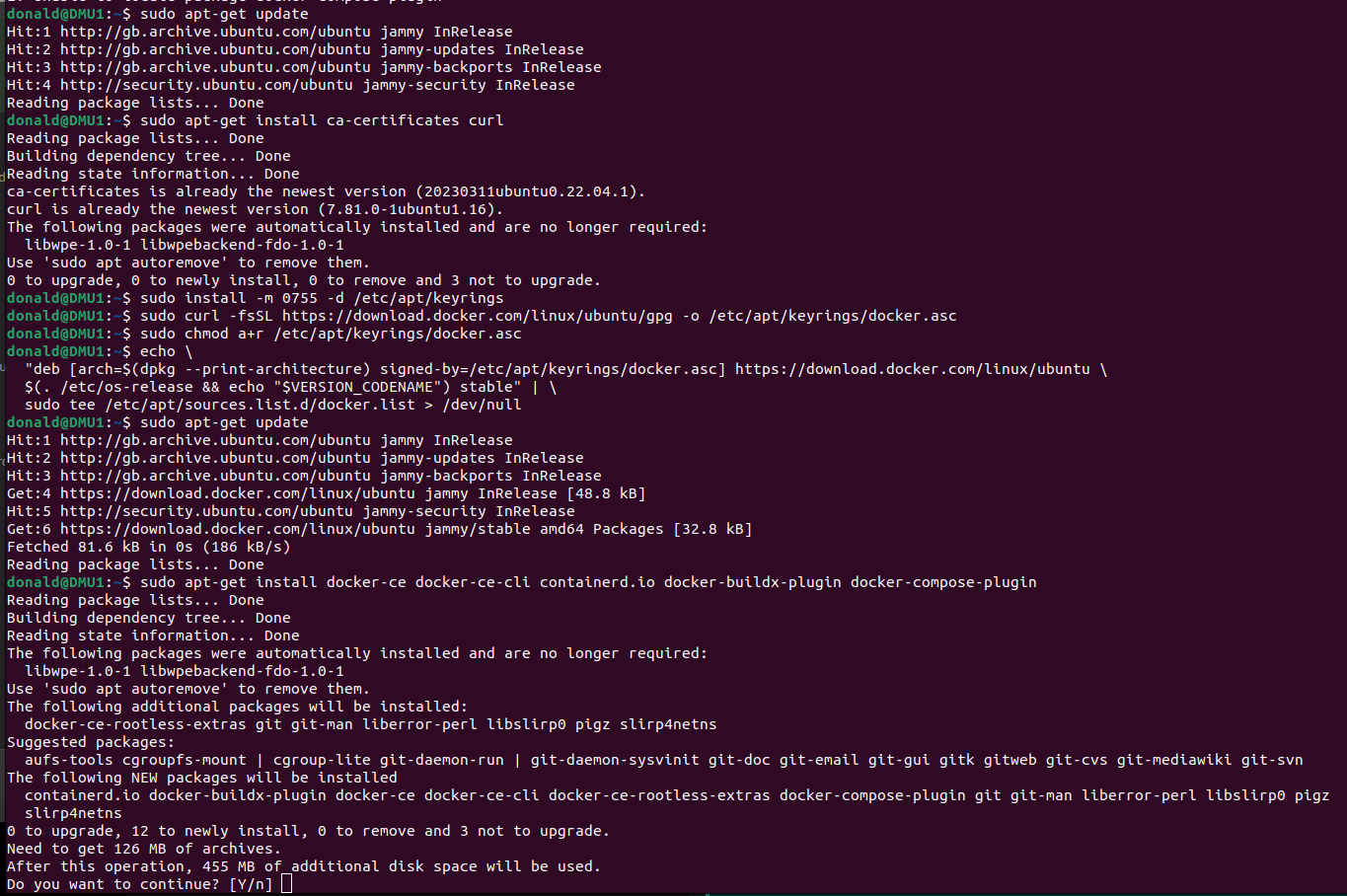
Installing Docker

Make sure the Docker Engine is installed:

Next, install the Nvidia Container Toolkit:

To simplify the execution of Docker commands from now on, you can run it rootless:

Configuration files

Create a folder on your Home directory, then save the code below as “compose.yaml”, this is going to be your Docker Compose configuration:

version: '3.9'

services:
  ################################################
  # Ollama
  openWebUI:
    container_name: ollama-openwebui
    image: ghcr.io/open-webui/open-webui:main
    restart: always
    ports:
      - "3000:8080"
    extra_hosts:
      - "host.docker.internal:host-gateway"
    volumes:
      - ollama-openwebui-local:/app/backend/data
    networks:
      - ai-dev-environment-network

  ollama:
    container_name: ollama
    image: ollama/ollama:latest
    restart: always
    ports:
      - "11434:11434"
    volumes:
      - ollama-local:/root/.ollama
    networks:
      - ai-dev-environment-network

  ################################################
  # Chroma
  postgres:
    container_name: postgres
    image: postgres:14-alpine
    restart: always
    ports:
      - 5432:5432
    volumes:
      - ~/apps/postgres:/var/lib/postgresql/data
    environment:
      POSTGRES_USER: vectoradmin
      POSTGRES_PASSWORD: password
      POSTGRES_DB: vdbms
    networks:
      - ai-dev-environment-network

  chroma:
    container_name: chroma
    image: chromadb/chroma
    restart: always
    command: "--workers 1 --host 0.0.0.0 --port 8000 --proxy-headers --log-config chromadb/log_config.yml --timeout-keep-alive 30"
    environment:
      - IS_PERSISTENT=TRUE
      - CHROMA_SERVER_AUTHN_PROVIDER=${CHROMA_SERVER_AUTHN_PROVIDER}
      - CHROMA_SERVER_AUTHN_CREDENTIALS_FILE=${CHROMA_SERVER_AUTHN_CREDENTIALS_FILE}
      - CHROMA_SERVER_AUTHN_CREDENTIALS=${CHROMA_SERVER_AUTHN_CREDENTIALS}
      - CHROMA_AUTH_TOKEN_TRANSPORT_HEADER=${CHROMA_AUTH_TOKEN_TRANSPORT_HEADER}
      - PERSIST_DIRECTORY=${PERSIST_DIRECTORY:-/chroma/chroma}
      - CHROMA_OTEL_EXPORTER_ENDPOINT=${CHROMA_OTEL_EXPORTER_ENDPOINT}
      - CHROMA_OTEL_EXPORTER_HEADERS=${CHROMA_OTEL_EXPORTER_HEADERS}
      - CHROMA_OTEL_SERVICE_NAME=${CHROMA_OTEL_SERVICE_NAME}
      - CHROMA_OTEL_GRANULARITY=${CHROMA_OTEL_GRANULARITY}
      - CHROMA_SERVER_NOFILE=${CHROMA_SERVER_NOFILE}    
    volumes:      
      - chroma-data-local:/chroma/chroma
    ports:
      - 8000:8000
    healthcheck:
      # Adjust below to match your container port
      test: [ "CMD", "curl", "-f", "http://localhost:8000/api/v1/heartbeat" ]
      interval: 30s
      timeout: 10s
      retries: 3
    networks:
      - ai-dev-environment-network

  vector-admin:
    container_name: vector-admin
    image: mintplexlabs/vectoradmin:latest
    restart: always    
    volumes:
      - "./.env:/app/backend/.env"
      - "../backend/storage:/app/backend/storage"
      - "../document-processor/hotdir/:/app/document-processor/hotdir"
    ports:
      - "3001:3001"
      - "3355:3355"
      - "8288:8288"
    env_file:
      - .env
    networks:
      - ai-dev-environment-network
    depends_on:
      - postgres

  ################################################
  # Flowise
  flowise:
    container_name: flowise
    image: flowiseai/flowise
    restart: always
    environment:
        - PORT=${PORT}
        - CORS_ORIGINS=${CORS_ORIGINS}
        - IFRAME_ORIGINS=${IFRAME_ORIGINS}
        - FLOWISE_USERNAME=${FLOWISE_USERNAME}
        - FLOWISE_PASSWORD=${FLOWISE_PASSWORD}
        - FLOWISE_FILE_SIZE_LIMIT=${FLOWISE_FILE_SIZE_LIMIT}
        - DEBUG=${DEBUG}
        - DATABASE_PATH=${DATABASE_PATH}
        - DATABASE_TYPE=${DATABASE_TYPE}
        - DATABASE_PORT=${DATABASE_PORT}
        - DATABASE_HOST=${DATABASE_HOST}
        - DATABASE_NAME=${DATABASE_NAME}
        - DATABASE_USER=${DATABASE_USER}
        - DATABASE_PASSWORD=${DATABASE_PASSWORD}
        - DATABASE_SSL=${DATABASE_SSL}
        - DATABASE_SSL_KEY_BASE64=${DATABASE_SSL_KEY_BASE64}
        - APIKEY_PATH=${APIKEY_PATH}
        - SECRETKEY_PATH=${SECRETKEY_PATH}
        - FLOWISE_SECRETKEY_OVERWRITE=${FLOWISE_SECRETKEY_OVERWRITE}
        - LOG_LEVEL=${LOG_LEVEL}
        - LOG_PATH=${LOG_PATH}
        - BLOB_STORAGE_PATH=${BLOB_STORAGE_PATH}
        - DISABLE_FLOWISE_TELEMETRY=${DISABLE_FLOWISE_TELEMETRY}
        - MODEL_LIST_CONFIG_JSON=${MODEL_LIST_CONFIG_JSON}
    ports:
        - '${PORT}:${PORT}'
    volumes:
        - ~/.flowise:/root/.flowise
    command: /bin/sh -c "sleep 3; flowise start"
    networks:
      - ai-dev-environment-network

volumes:
  ollama-openwebui-local:
    external: true
  ollama-local:
    external: true
  chroma-data-local:
    driver: local

networks:
  ai-dev-environment-network:
    driver: bridge

Then in the same folder, create a second file called “.env”, and copy and paste the text below. This is going to be your environment variables file:

################################################################
# FLOWISE
################################################################
PORT=3003
DATABASE_PATH=/root/.flowise
APIKEY_PATH=/root/.flowise
SECRETKEY_PATH=/root/.flowise
LOG_PATH=/root/.flowise/logs
BLOB_STORAGE_PATH=/root/.flowise/storage

################################################################
# VECTOR ADMIN
################################################################
SERVER_PORT=3001
JWT_SECRET="your-random-string-here"
INNGEST_EVENT_KEY="background_workers"
INNGEST_SIGNING_KEY="random-string-goes-here"
INNGEST_LANDING_PAGE="true"
DATABASE_CONNECTION_STRING="postgresql://vectoradmin:password@postgres:5432/vdbms"

Taking as example my project folder, “Projects/AI-Dev-Environment”, you should now have something like this:

Open the terminal, move into your folder, then run the command:

docker compose up -d

That’s it. Docker will download the images from internet, then will configure the containers based on the provided configuration file. When done, you should be able to open, from the web browser:

Connecting to Ollama and Chroma

Before we can start playing around, there are still a few configuration steps to do in order to connect to Ollama and Chroma, as they don’t have an out-of.-the-box UI:

Connect to Open WebUI opening a browser window and typing http://localhost:3000

Sign up and create an account (it’s all stored locally). After login, you will see the home page:

Go to Settings (top-right corner, then “Settings”), select the tab “Connections” and fill up the information as per below:

Click “Save”, then select the next tab, “Models”:

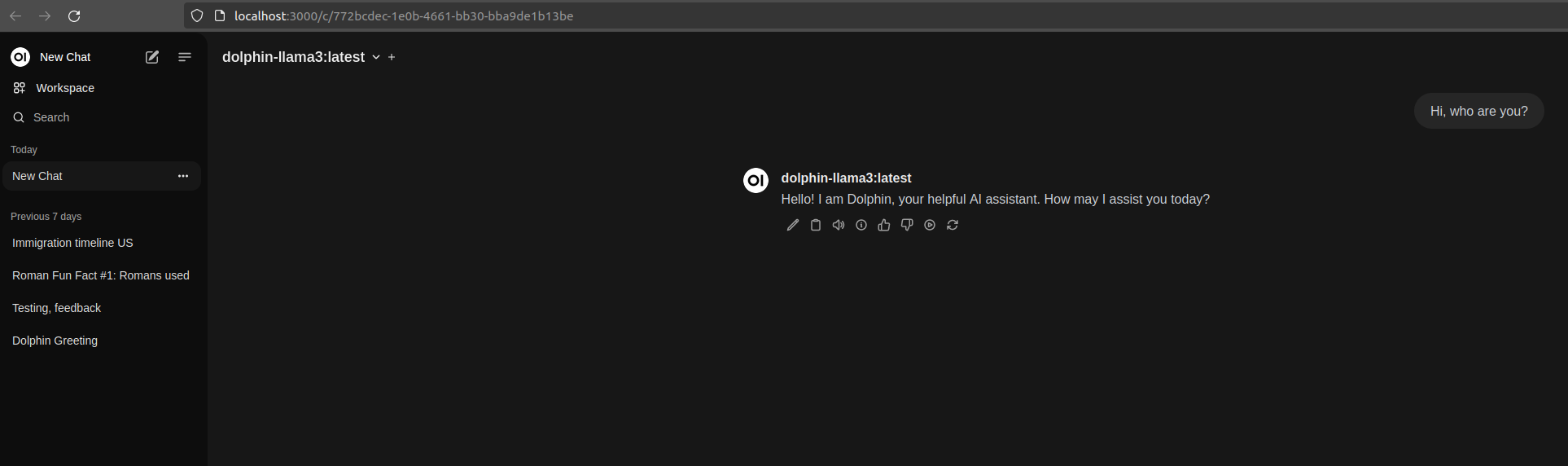
In “Pull a model from Ollama.com”, enter a model tag name, then click the button next to the text field, to download it. To find a supported model name, go to https://ollama.com/library and choose one. I’m currently using “dolphin-llama3” (https://ollama.com/library/dolphin-llama3), an uncensored model. Note the “B” near the model names… 3B, 8B, 70B, those are the model’s “billions of parameters”. Do not load a model having too many parameters, unless you have minimum 128GB of RAM. I’d suggest not more than 8B.

That’s all for Ollama. Go back to the home page, make sure your model is selected from the drop down “Select a model” on the top-left corner, and you can start chatting:

Now open Vector Admin at http://localhost:3001 . Connect to Chroma using the information displayed here below:

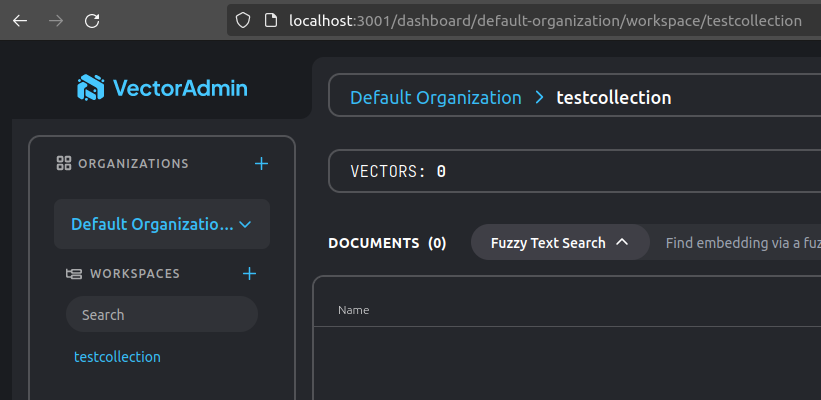
Click “Connect to Vector Database”. Create a new workspace in Vector Admin (mine below is called “testcollection”):

You can now verify that the collection actually exists in Chroma, calling Chroma’s API endpoint directly from the browser:

Recap

We got to the end of Part 1, and if you have executed all steps correctly you should now have your new shining Dev environment for creating Generative AI apps locally on your computer!

Quick introduction to GenAI apps

Summary

Generative Artificial Intelligence (GenAI) applications are transforming our world, making it possible to create text, images, music, and videos automatically.

Using advanced algorithms and neural networks, these technologies are revolutionizing areas such as art, writing, design, and video games.

In this series, I’m going to share the path I am taking to learn these technologies, how I am approaching the study, how I am setting up my development environment, what applications I intend to study, what I intend to develop, and how I am developing them. I will be discussing both open-source technologies and their equivalents in Microsoft’s Modern Work (Microsoft Copilot for Microsoft 365), as it’s part of my daily job.

Generative AI is evolving at the speed of light. There are numerous concepts to learn, with standards, tools, and frameworks springing up like mushrooms. What I write today could become obsolete by tomorrow morning. Therefore, I'm going to write this series following three guiding principles:
1. I will focus on the grand scheme of things, identifying the fundamental concepts and technologies to learn and concentrating on those without digressing. However, I will leave references in the articles for those who wish to delve deeper.
2. I will condense in my articles the results of my tests, projects, and experiments, explaining the path I followed to implement certain solutions or solve certain problems, while also mentioning possible alternative methods.
3. I will strive to keep these posts up-to-date with regular reviews.

More than ChatGPT…

At the heart of ChatGPT is an LLM (Large Language Model), an artificial intelligence model specialized in natural language processing. ChatGPT, as well as Claude, Gemini, LLAMA, and many others, are trained on large textual datasets and use deep learning techniques to ‘understand’ and generate text similarly to how a human would. LLMs can perform a variety of language-related tasks, including machine translation, sentence completion, creative writing, code programming, answering questions, and more.

With GenAI apps, we take all of this a step further, and LLMs become the core of our applications. These applications can do things that were unthinkable until recently, such as looking up information in our books in near real-time, translating into another language using our talking avatar, holding a phone conversation on our behalf, suggesting a recipe for dinner with ingredients we have at home, helping our child with homework, or finding us the cheapest tickets to our next destination (and buying them for us too!).

But how many types of GenAI apps exist? What do they comprise? What is their architecture? As mentioned, when it comes to AI, what is true today may no longer be true tomorrow morning. Let’s say that at the moment we can imagine a pyramid in which, at the base, we find LLMs pure and simple: mostly open-source models, created by OpenAI, Google, Facebook, Anthropic, Mistral, and others, with which we can interact by loading them into specialised servers such as Ollama, AnythingLLM, GPT4All to name the most famous open-source servers. Additionally, there are closed-source systems, such as OpenAI’s ChatGPT, Google Gemini, and Microsoft Copilot, which we use everyday, running the LLMs they themselves produce (in the case of Microsoft, the LLMs used are those of OpenAI).

RAGs

Immediately above this, we find RAG (Retrieval-Augmented Generation) apps, which are basically LLM servers to which we can provide additional context that they will then use to base their answers, citing the sources. For example, we can provide the RAG with the address of a website or one or more documents, and then ask the RAG to answer questions about that website or those documents. The analogy that is usually made here is that of a Court Judge who has a deep knowledge of the law but sometimes deals with a case so peculiar that it requires the advice of an expert witness. Here, the Judge is the LLM, and the expert is the RAG, whose expertise is the additional context on which the Judge relies to deal with the case.

In some respects, ChatGPT and similar models have already evolved to the stage of RAG. In their latest versions, they no longer limit themselves to being generalist LLMs. We can pass them files to be analyzed, summarized, and queried on, and they are also able to search for information on search engines themselves and cite sources in their answers.

We mere mortals cannot develop new LLMs, as it takes enormous computing resources to train them. But we can exploit open-source LLMs to develop RAGs.

AI Agents

Above the RAGs, we find the Agents, and here things start to get interesting. Agents have an LLM and execution contexts, but they also have tools, enabling them to decide for themselves how to react to a certain situation using the tools at their disposal. An AI Agent, for instance, is an app that we ask to book us the cheapest trip to a certain destination based on our preferences (preferences that the Agent already knows). An AI Agent is a fraud detection system used in banks, an automated customer service operator, Tesla’s autonomous driving system, and so on. New use cases appear almost daily.

Microsoft Copilot itself is evolving very rapidly from RAG to AI Agent (I will discuss Microsoft Copilot in more detail in other posts).

But can we mere mortals, with only a small computer with an overpriced Nvidia GPU and Visual Studio Code, create an AI Agent? Yes, we can!

Above and beyond the Agents…

And how does the pyramid end? Is there anything above the AI Agents? Above AI Agents, I would put LLM OS—something that may not exist yet but should be coming soon (who said ChatGPT 5?), first theorised by Andrej Karpathy, a kind of Operating System where the AI Agents will be its apps…

Above all, I’d only imagine the AGI (Artificial General Intelligence), the last stage, the artificial brain—something far more intelligent than human beings.

<IMHO>Something that, frankly, once in the hands of the people who govern us, will only create disasters.</IMHO>

Architecture of GenAI apps

An app is usually made of at least three things: business logic, data, and user interface. GenAI apps are no exception.

Business Layer

We have said that a GenAI app is practically an LLM “on steroids”: at the heart of the business layer is, therefore, the LLM server. This server specifies the LLM to be used and exposes the primitives for interacting with it, usually through REST APIs, to the rest of the business layer. However, the business layer of GenAI apps is also made up of a second component: the Orchestrator. The Orchestrator is fundamental in managing the multiple interactions with the LLM and the data layer, as well as the interfaces with external APIs and multiple prompts.

Data Layer

Additional contexts (files, external data sources) available to the system via various types of connectors, the implementation of which varies from case to case, form part of the data layer. In order for these external sources to be processed by the LLM, however, a further component must be introduced: the Vector Database.

Vector DatabaseS

In simple terms, Vector Databases allow for the storage and retrieval of vector representations of data, enabling efficient similarity searches and data retrieval for the LLM. These representations of data are called Vector Embeddings, i.e. pieces of information (a block of text, an image) translated into matrices of numbers in such a way that they are comprehensible to an LLM. Vector embeddings are a way to convert words and sentences and other data into numbers that capture their meaning and relationships. They represent different data types as points in a multidimensional space, where similar data points are clustered closer together.

Presentation Layer

The user interface of a GenAI app has at the very least a chat window, where we can write prompts and receive output (answers to our questions, outcome of actions taken by the agent, etc.).

With the advent of Chat GPT 4o, however, we are also starting to see multimodal user interfaces, i.e. capable of handling not only textual input/output but also audio, video and images.

Conceptual Architectures

In summary, the conceptual architecture of a RAG app can be schematised as follows:

The Agent’s one is very similar, in addition there are just the logic concerning the selection and operation of tools, as well as a more elaborate handling of prompt templates:

Of course what I’ve just described is the basic architecture: depending on the type of app and the problem to be solved though, it may be necessary to introduce new concepts, new elements, and things may become exponentially more complex.

As I said at the beginning, however, these topics are new to everyone and constantly evolving, so I think it is better to start with the fundamentals and what is certain, and then gradually add complexity and test new paths.

Recap

In this article, we have seen what GenAI apps are, their types (RAG, Agent, LLM OS), and then outlined the conceptual architecture of GenAI apps, mentioning their main components and interactions.

Coming up next

The next articles of this series will talk about:

  • My open source setup for the development environment.
  • Tools for the development of GenAI apps.
  • Which GenAI apps I am trying to develop.
  • Copilot for Microsoft 365 and GenAI applied to Modern Work.
  • Advanced GenAI (in-depth prompt engineering, LLMOps, etc.).
  • Review of the main Low-Code platforms for building GenAI apps.

Get your Modern Workplace ready for Copilot

Exciting news from Microsoft! They have just unveiled Copilot, a groundbreaking generative AI tool that is about to transform the way we work and boost personal productivity. But how exactly does Copilot fit into the comprehensive Microsoft 365 product suite? What does this mean for your company’s data and security? And most importantly, how can you ensure a smooth rollout that aligns with your organization’s unique business and technical needs?

Exciting news from Microsoft! They have just unveiled Copilot, a groundbreaking generative AI tool that is about to transform the way we work and boost personal productivity. But how exactly does Copilot fit into the comprehensive Microsoft 365 product suite? What does this mean for your company’s data and security? And most importantly, how can you ensure a smooth rollout that aligns with your organization’s unique business and technical needs?…

Read my full article on Codec Ireland’s blog